Discharge a patient
Record the discharge type and stages for an admitted patient so the admission closes and the bed is free for the next patient.
Discharge closes the admission. You record how the patient left and tick each discharge stage as it is cleared: the doctor marks the patient for discharge, pharmacy and billing clear their dues, and the ward lets the patient go. When the patient is physically discharged, the bed becomes free.
Who can do this: admission desk, ward and billing staff with discharge rights
Where: In-Door Management › Admission List › row menu › Discharge
Before you start
- The final bill is settled. See Finalise an in-patient bill.
- The discharge summary is written. See Write a discharge summary.
Discharge the patient
- Go to In-Door Management › Admission List and find the patient.
- Click the three dots at the end of the row and choose Discharge. The Patient Discharge screen opens with the admission details filled in.
- Check Discharge Date and Discharge Time.
- Choose the Discharge Type: Normal, DAMA, LAMA, Abscond, Expired/Dead, Discharge on patient's own interest or Transfer Summary.
- Tick the stages that are done: Marked for Discharge, Pharmacy and Service Orders Clearance, Billing Clearance and Physical Discharge. Each stage records the date, time and the user who ticked it.
- Type any note in Discharge Remarks.
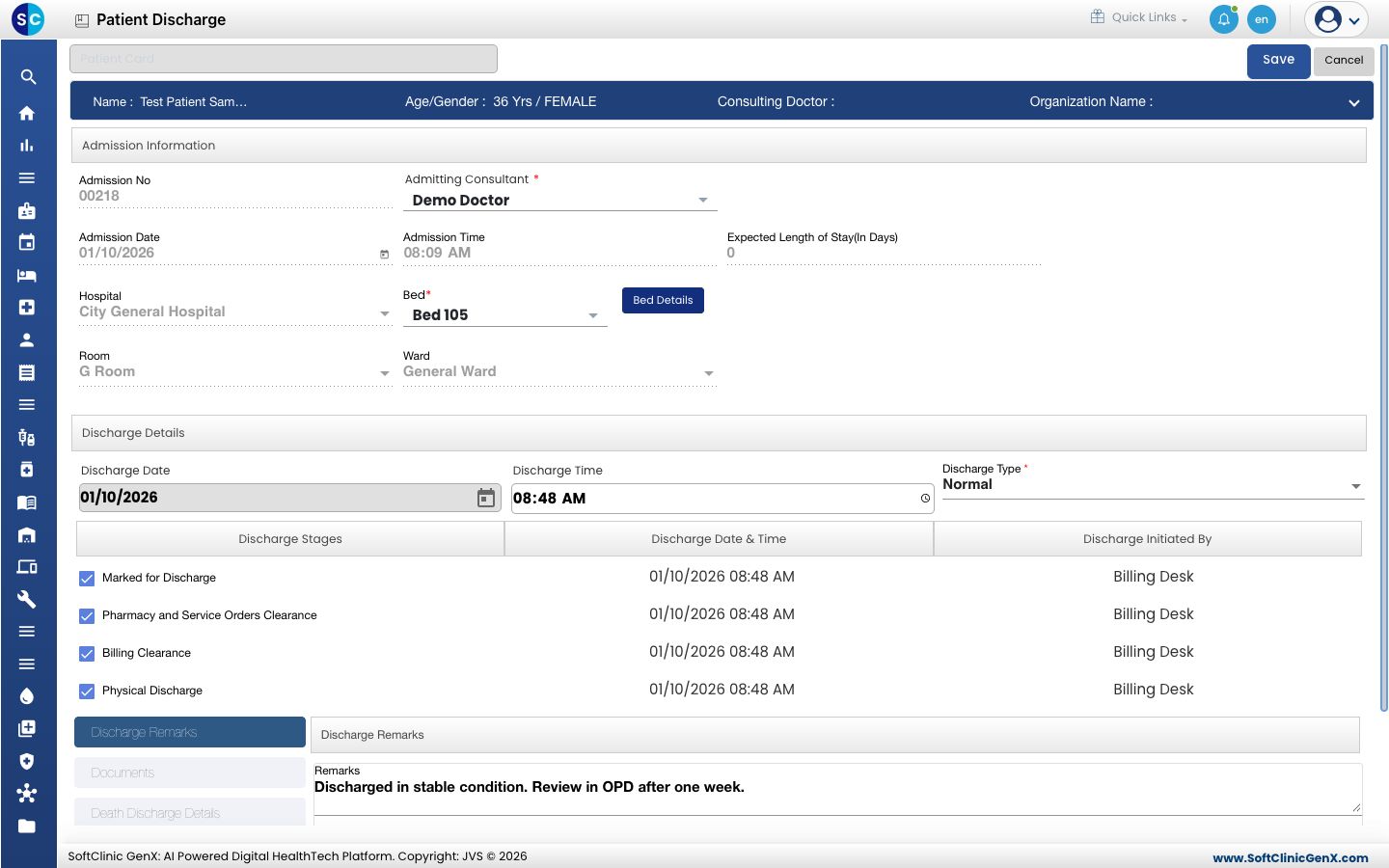
- Click Save.
When Physical Discharge is ticked, the patient no longer shows among admitted patients on the Admission List, and the bed is free again for the next admission.
Discharge in stages
Departments often clear the patient at different times. Tick only the stages that are done and click Save. Open Discharge from the same row later to tick the rest.
Other tabs on the discharge screen
- Documents: attach the discharge papers.
- Death Discharge Details: record the details when the Discharge Type is Expired/Dead.
- Pharmacy & Service Pending Orders: see orders not yet cleared.
- Bill Clearance Details: tick Clearance with Authorization and choose the Authoriser when someone approves a discharge with dues pending.
Check that the patient is discharged
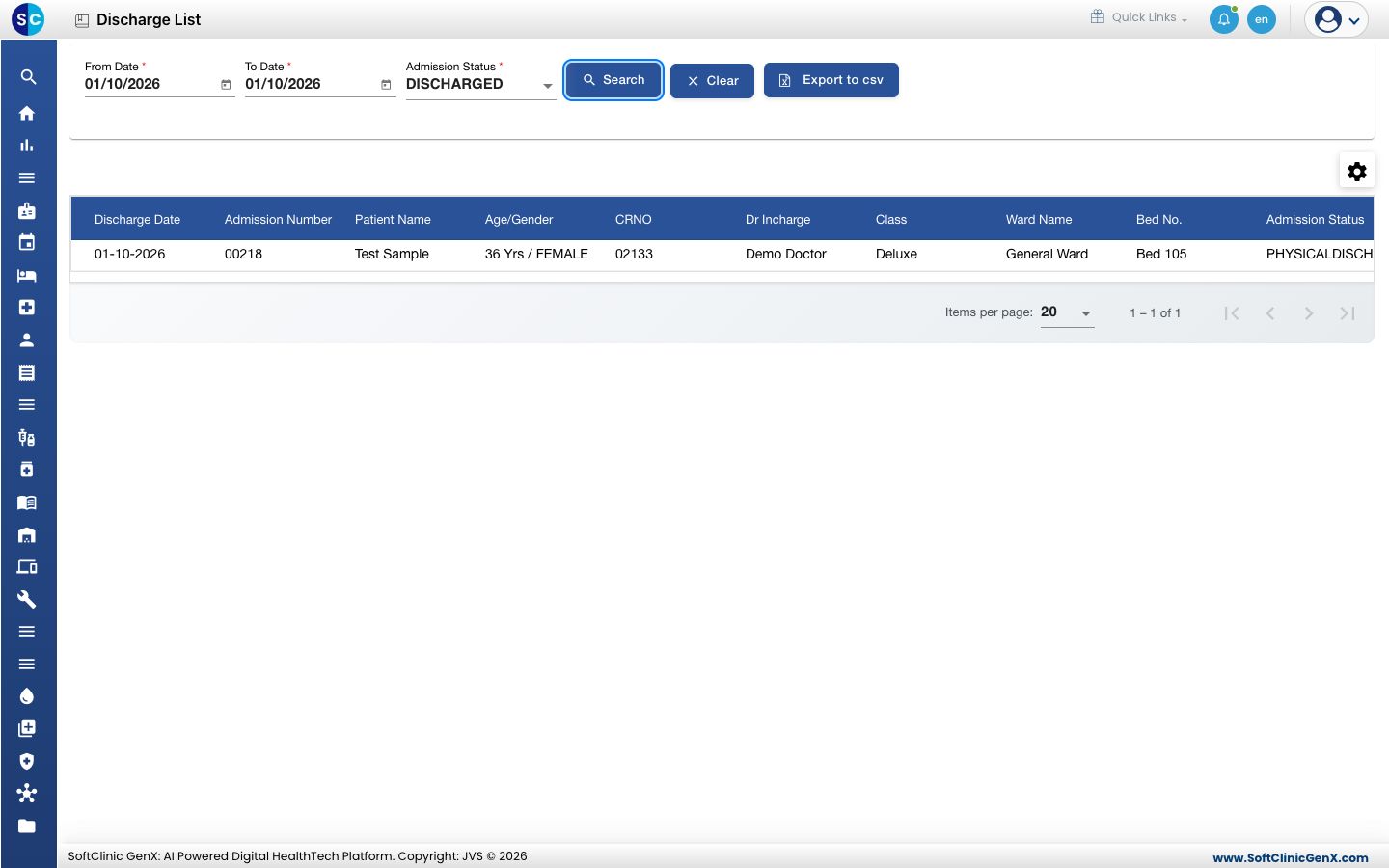
Go to In-Door Management › Reports › Discharge List and click Search. The patient shows with the discharge date, ward and bed. See Find discharged patients.
Troubleshooting
| What you see | What it means | What to do |
|---|---|---|
| This field is required under Discharge Type | No discharge type is chosen. | Choose the Discharge Type and save again. |
| You are not allowed to perform this operation | Your role has no discharge rights. | Ask your administrator for the right. |
Related
- View the bed chart: check that the bed is free.
- Find discharged patients: list everyone discharged in a period.
- In-Door Management FAQs: common discharge questions.