Write a discharge summary
Record the hospital course, condition at discharge and advice for an admitted patient, and save it as a draft until it is final.
The discharge summary is the doctor's record of the stay: why the patient came in, what was done and what to do at home. You can save it as a draft during the stay and complete it on the day of discharge.
Who can do this: doctors and staff with clinical notes rights
Where: In-Door Management › Admission List › row menu › Discharge Summary
Before you start
- The patient is admitted. See Find an admitted patient.
Write the summary
- Go to In-Door Management › Admission List and find the patient.
- Click the three dots at the end of the row and choose Discharge Summary. The notes screen opens with Clinical Notes Template set to Discharge Summary and Visit Type set to In Patient.
- Read the sections already filled from the stay, such as Medications, Lab Report and Vital Signs Review And Recording.
- Click a section heading to open it, for example Course in Hospital. Type the text in the box on the right.
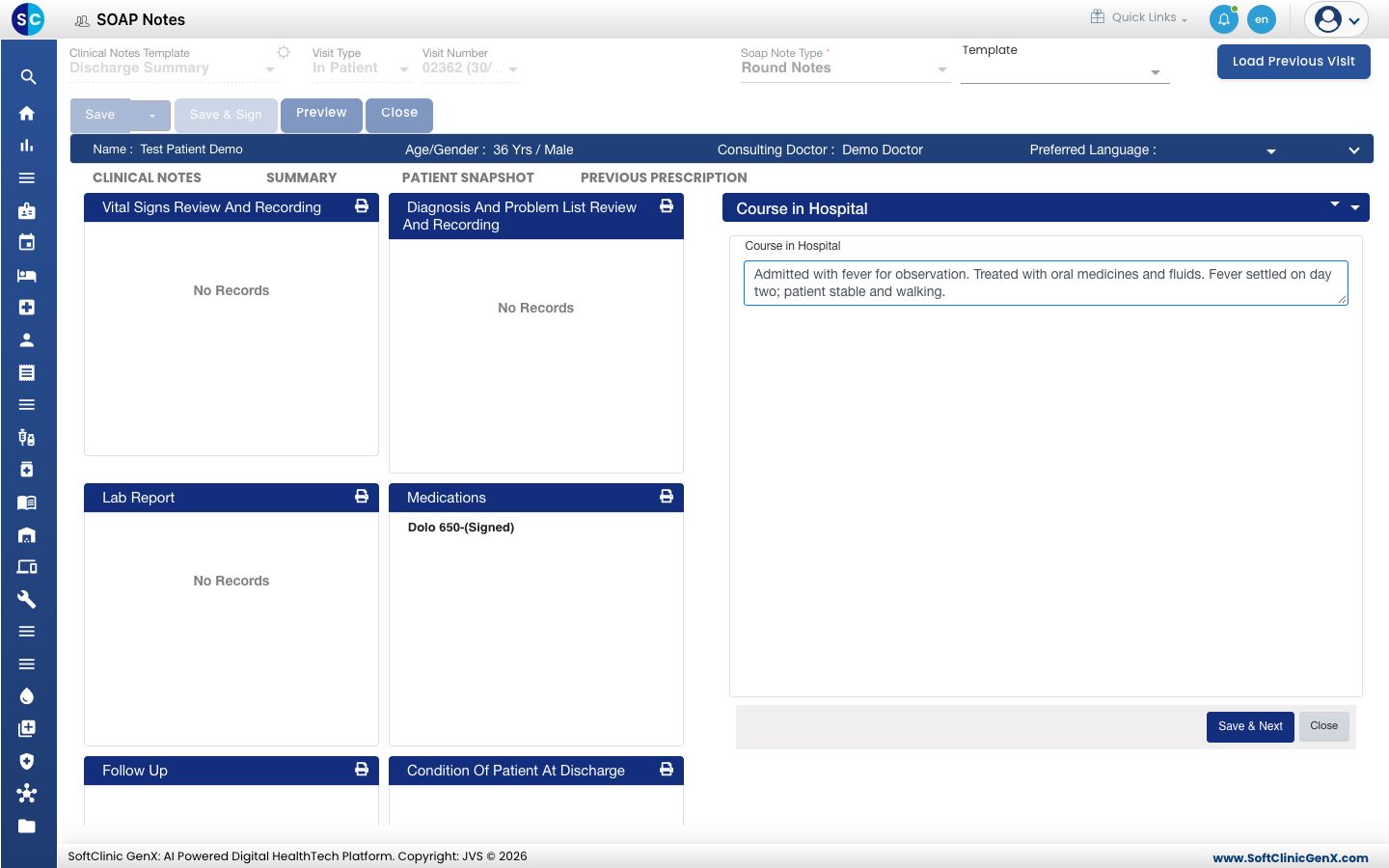
- Click Save & Next. You see Record updated successfully and the text shows in the section card.
- Repeat for the other sections you need: Condition Of Patient At Discharge, Discharge Notes, Clinical Summary, Treatment Given, Advises, Plan of Care, Physical Exercise and Warning Sign & Symptoms.
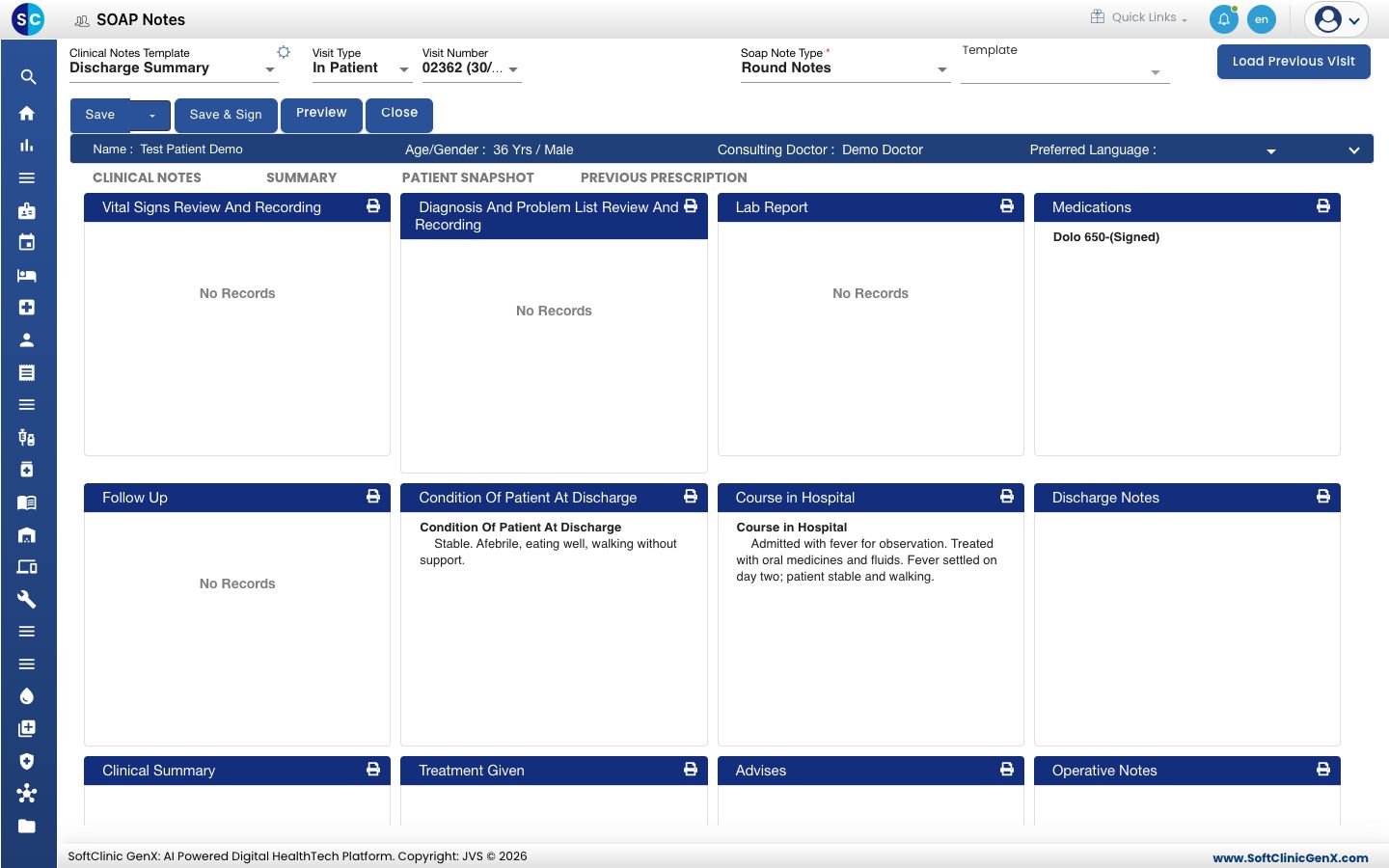
Save a draft
Click Save at the top. The summary is saved as a draft and you return to the Admission List. Open it again from Discharge Summary on the same row to carry on.
When the summary is final, click Save & Sign instead. A signed summary is locked.
Click Load Previous Visit to copy the notes of an earlier visit, then edit them.
Find a summary later
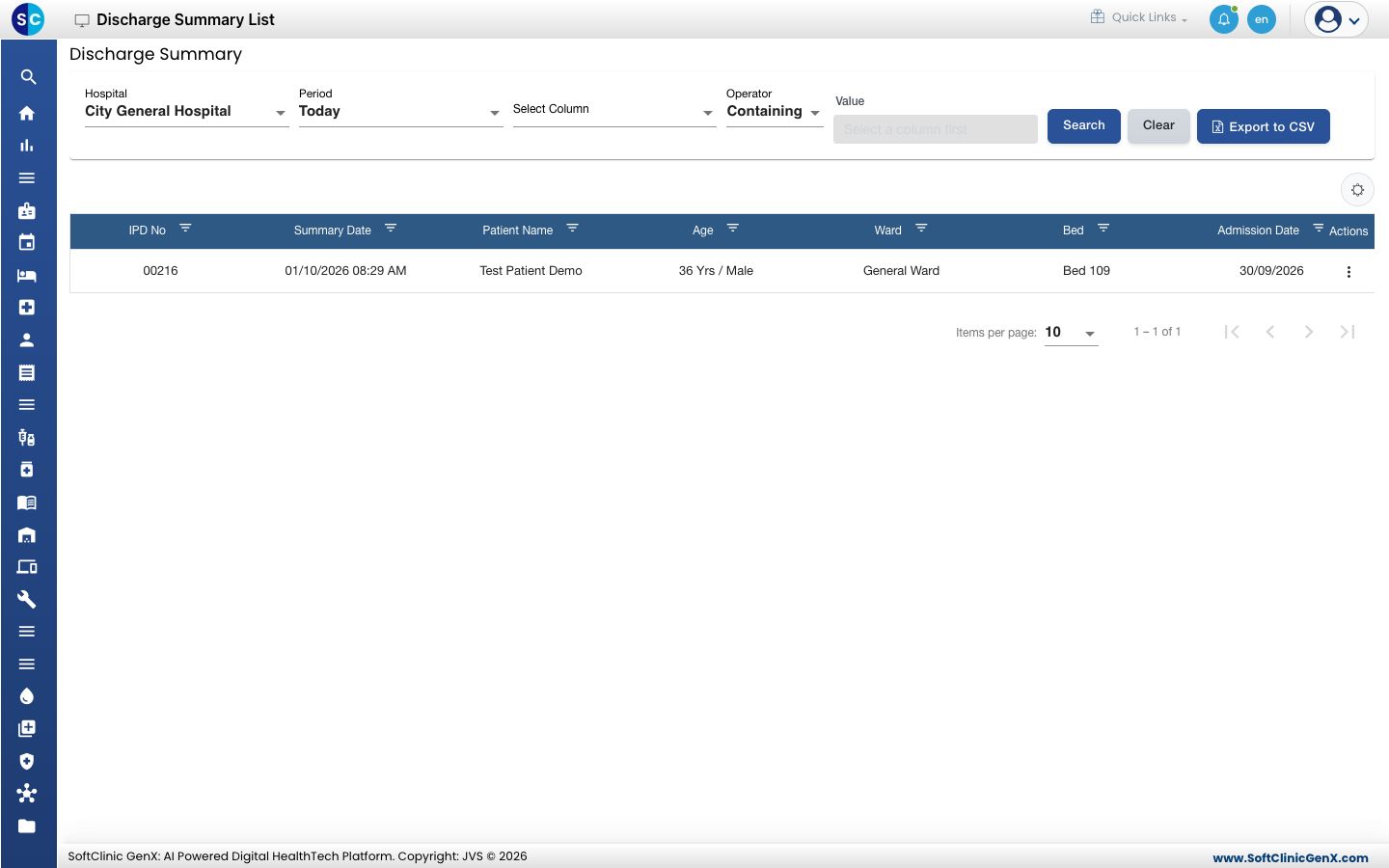
Go to In-Door Management › Views › Discharge Summary List. Choose the Hospital and the Period, and click Search. Each summary shows with its IPD number, summary date and status. Use Edit in the row menu to open it.
Troubleshooting
| What you see | What it means | What to do |
|---|---|---|
| Empty Data can't be saved | The section box was empty when you clicked Save & Next. | Type the text, click outside the box, then click Save & Next. |
| A section card stays empty after saving | The section was closed without Save & Next. | Open the section again, type the text and click Save & Next. |
| The summary is not in Discharge Summary List | The Period does not cover the summary date. | Choose a longer Period and click Search. |
Related
- Discharge a patient: the next step on the day the patient leaves.
- Finalise an in-patient bill: settle the bill before discharge.
- In-Door Management FAQs: common questions.