Draft a discharge summary from the notes
Let GenX build a first draft of the discharge summary from the admission's doctor and nursing notes, then review it and save.
At discharge, GenX can draft the summary for you from the notes written during the stay, including handwritten Smart Write notes. Each drafted line shows the note it came from, so you can check it. Nothing goes into the summary until you accept it, and you edit the result before you save.
note
Who can do this: doctors
Where: In-Door Management › Admission List › three dots on the patient › Discharge Summary › Draft from notes
Before you start
- The admission has doctor progress notes or nursing notes. See Write IPD notes by hand.
Draft the summary
- On the Admission List, click the three dots on the patient's row and choose Discharge Summary.
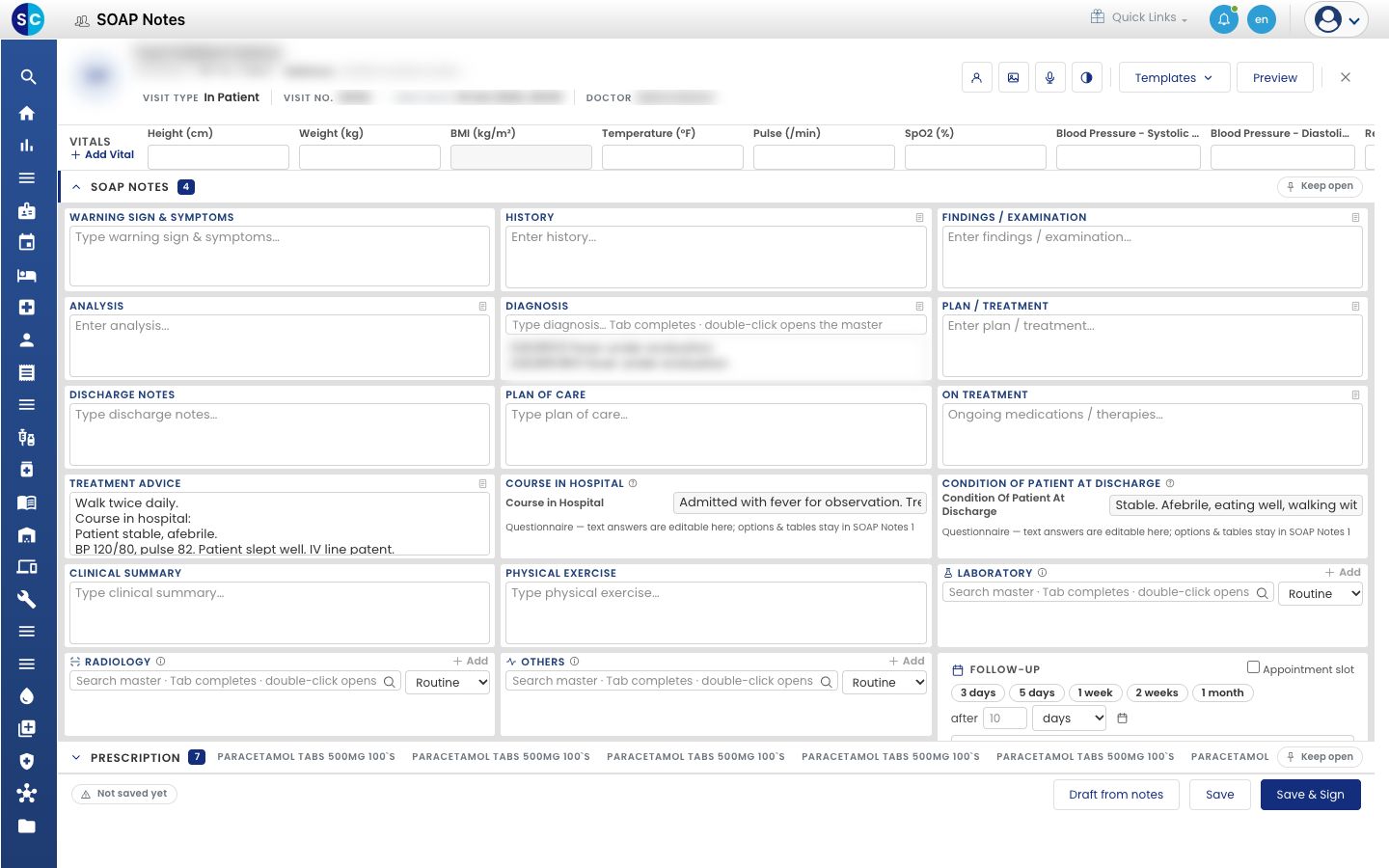
- Click Draft from notes. If the summary opens in a new layout, click Draft from notes again at the bottom of the page.
- The Draft from notes window opens. It lists the drafted lines by part, for example Course in hospital and Discharge medicines. Each line ends with the note it came from and that note's date and time. The arrow after each heading names the summary field the lines go into.
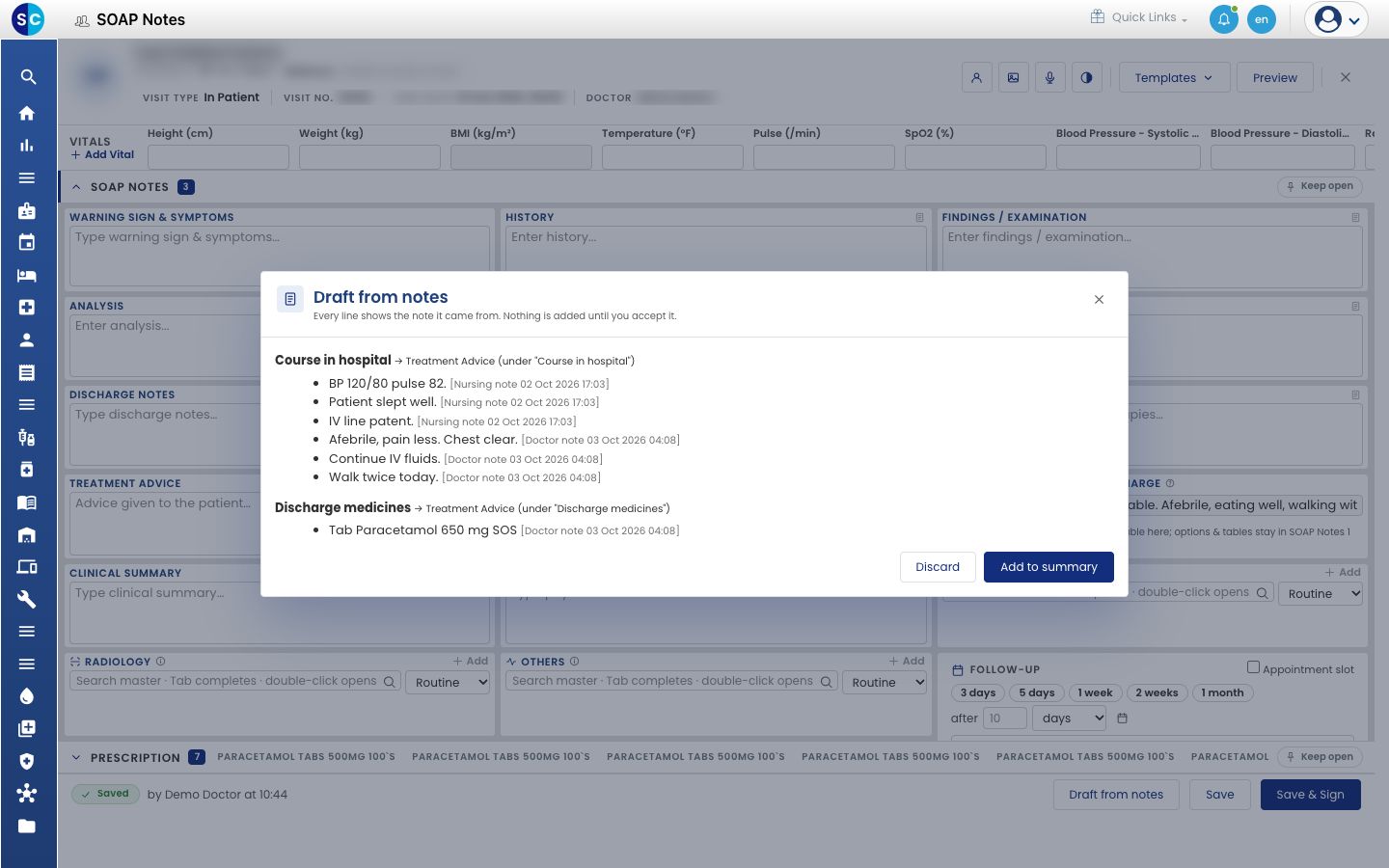
- Click Add to summary, or Discard to close the window without adding anything.
Review and save
- Read every drafted line in the summary field and correct or remove what does not belong. The message Draft added from the admission notes. Review every line, then press Save. reminds you.
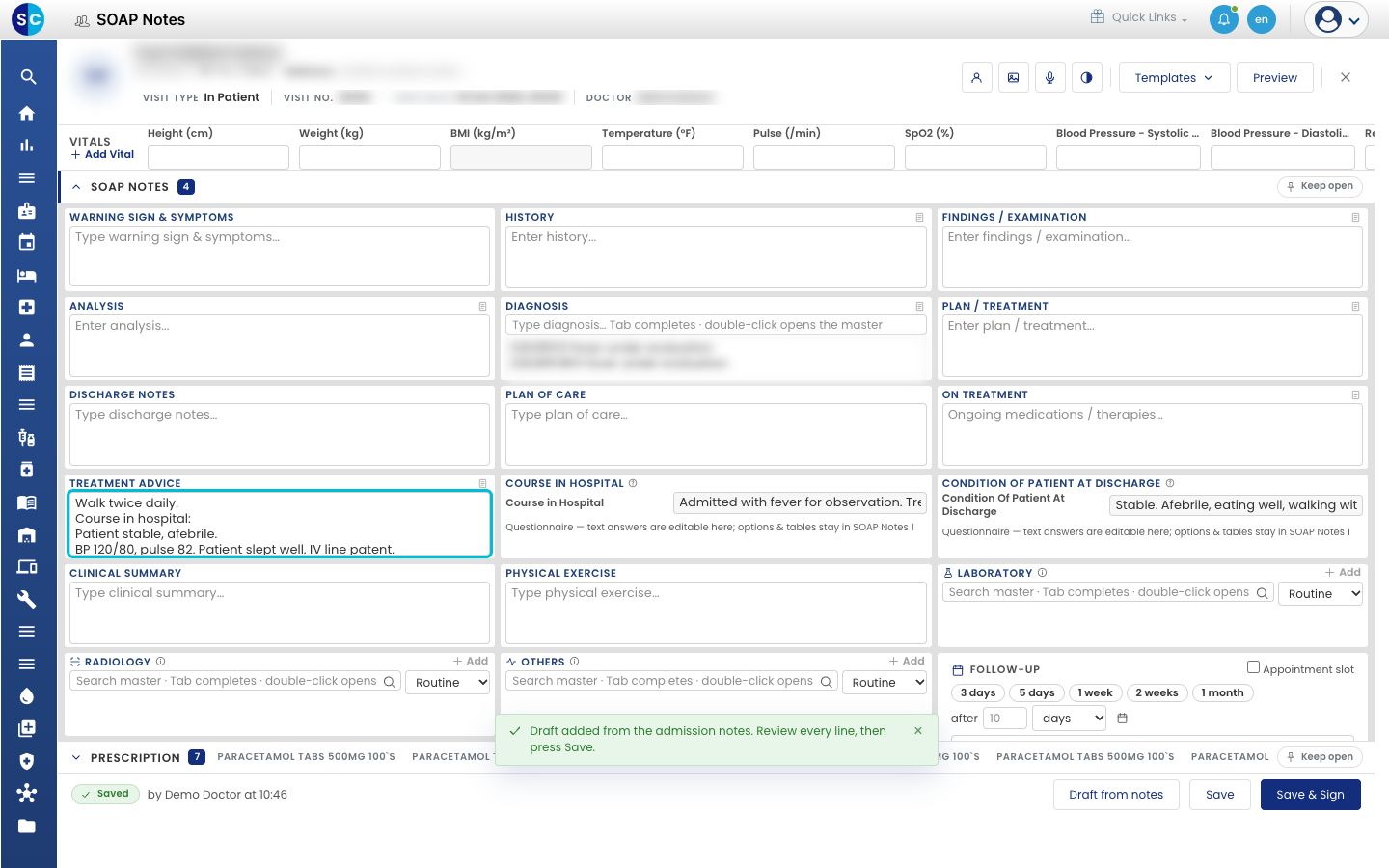
- Click Save to keep the summary as a draft, or Save & Sign when it is final.
tip
When the summary template has no field for a part such as Course in hospital, the lines go into another field under that heading, as in the example above.
Related
- Write a discharge summary: fill, save and find a discharge summary.
- Discharge a patient: the next step after the summary.
- Smart Write: write by hand, get a typed record: what Smart Write does.