Write a visit note by hand
Write the OPD consultation with a pen on the tablet, check what GenX read, and save it as the typed visit note and prescription.
Write the consultation on the Smart Write pad the way you would on paper. GenX reads the page and fills the chief complaint, history, diagnosis, medicines and follow-up. You review each part, then save, and the note appears on the web SOAP note and the print.
Who can do this: doctors
Where: provider app › Consult on the patient › SOAP Notes › Smart Write button
Before you start
- Smart Write is switched on for your hospital. See Smart Write: write by hand, get a typed record.
- The patient has a visit for today and is in your queue.
Write on the pad and read it
- In the provider app, tap Consult on the patient. The SOAP Notes screen opens.
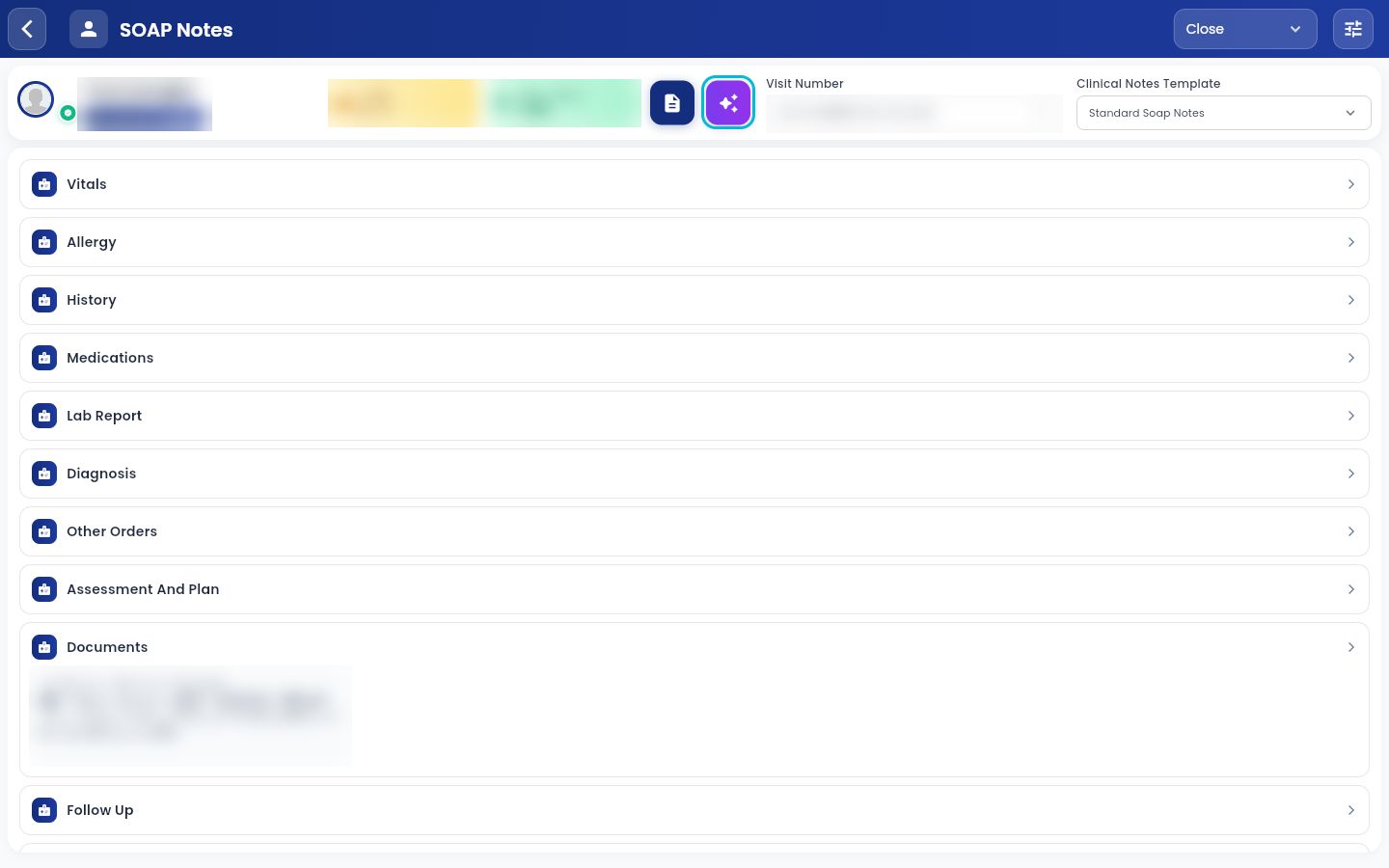
- Tap the Smart Write button next to the patient's details. It is highlighted below.
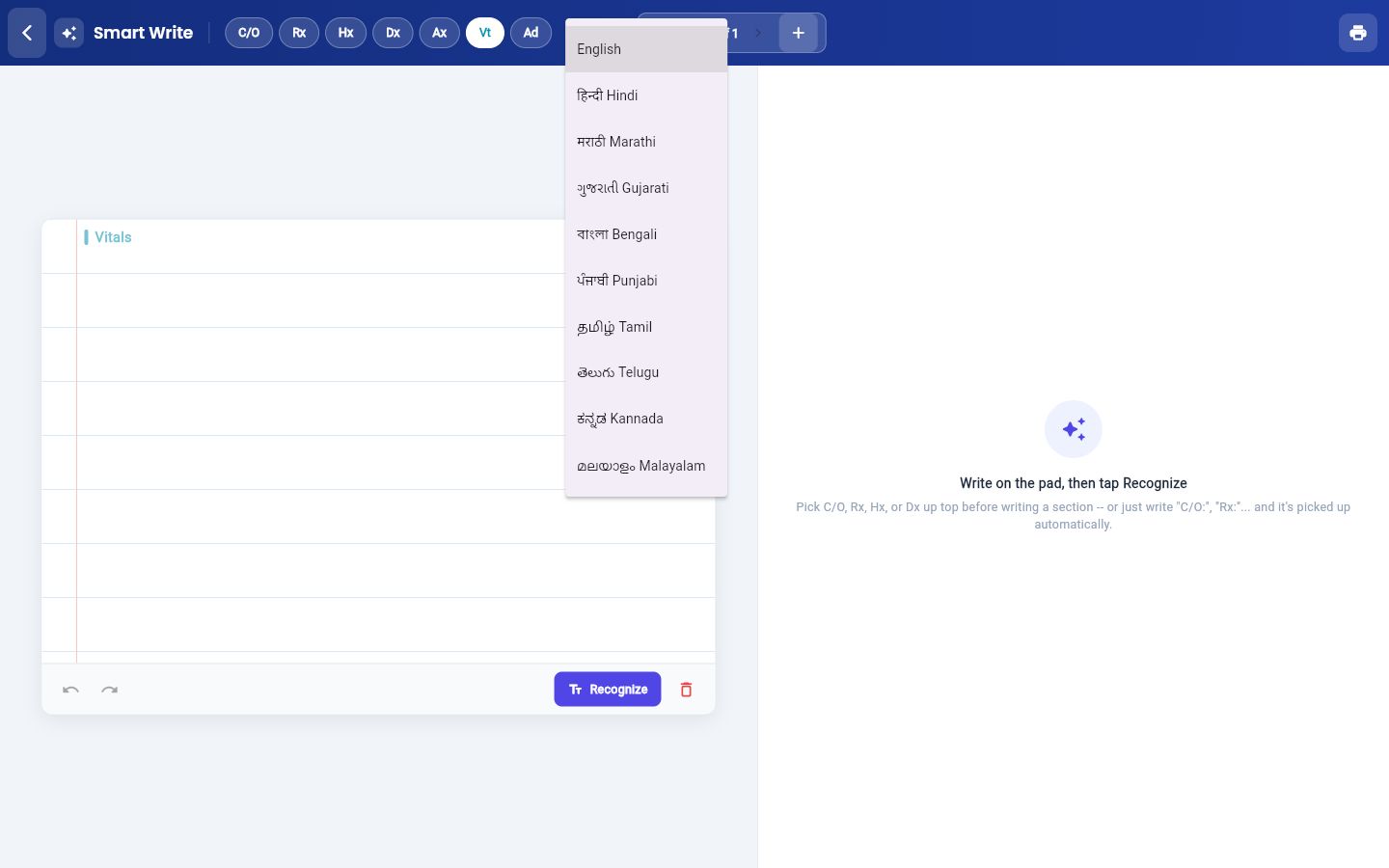
- Tap the language button (EN) and choose the language you write in.
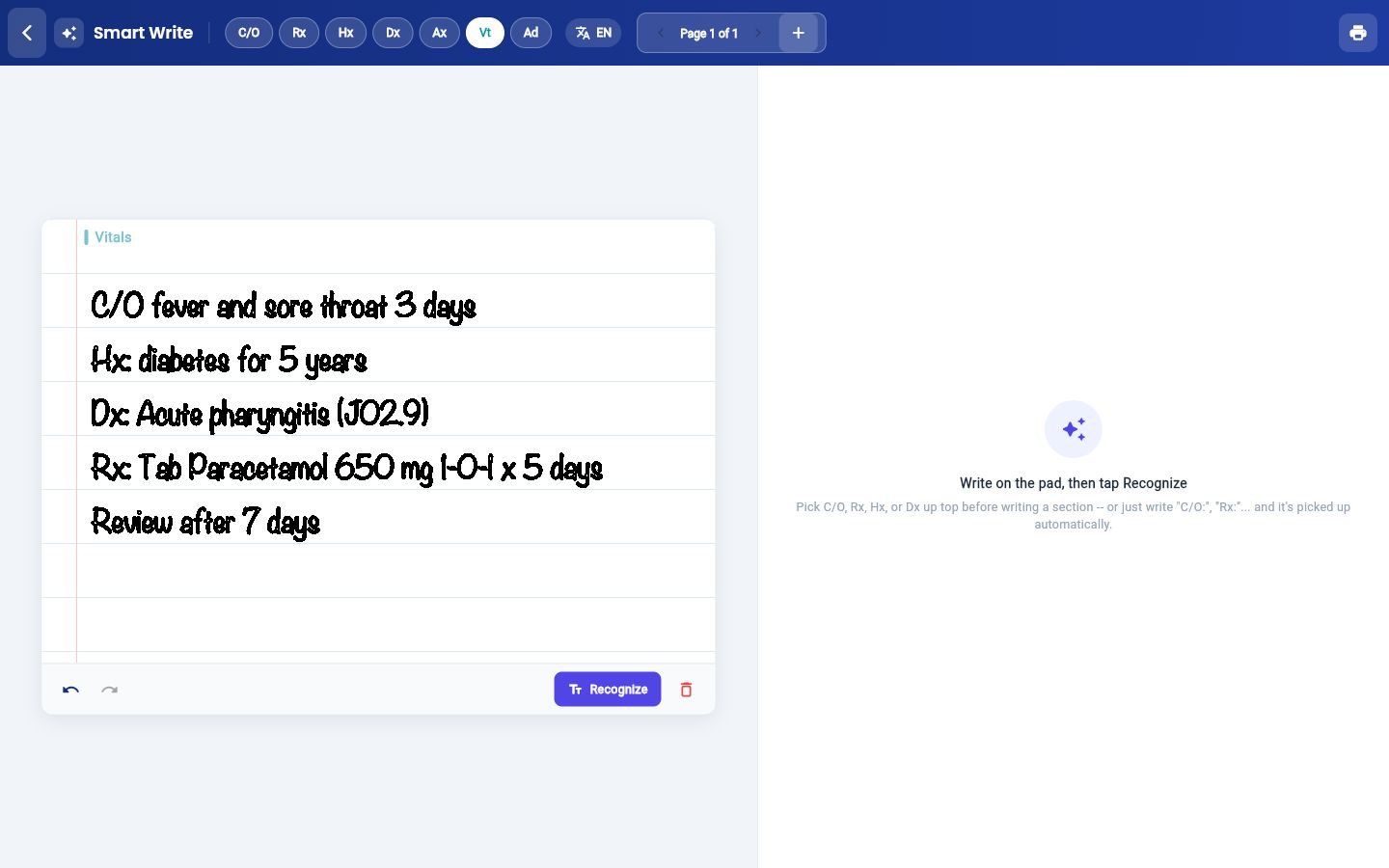
- Write the note on the pad. Start each part with its label, for example "C/O", "Hx", "Dx" or "Rx", or tap the label at the top before you write. Tap + to add another page.
- Tap Recognize. The typed reading appears on the right, sorted into cards.
Review and correct
GenX lists any line it was unsure about at the top, under Check these lines — the reading was unsure. Compare those lines with your page first.
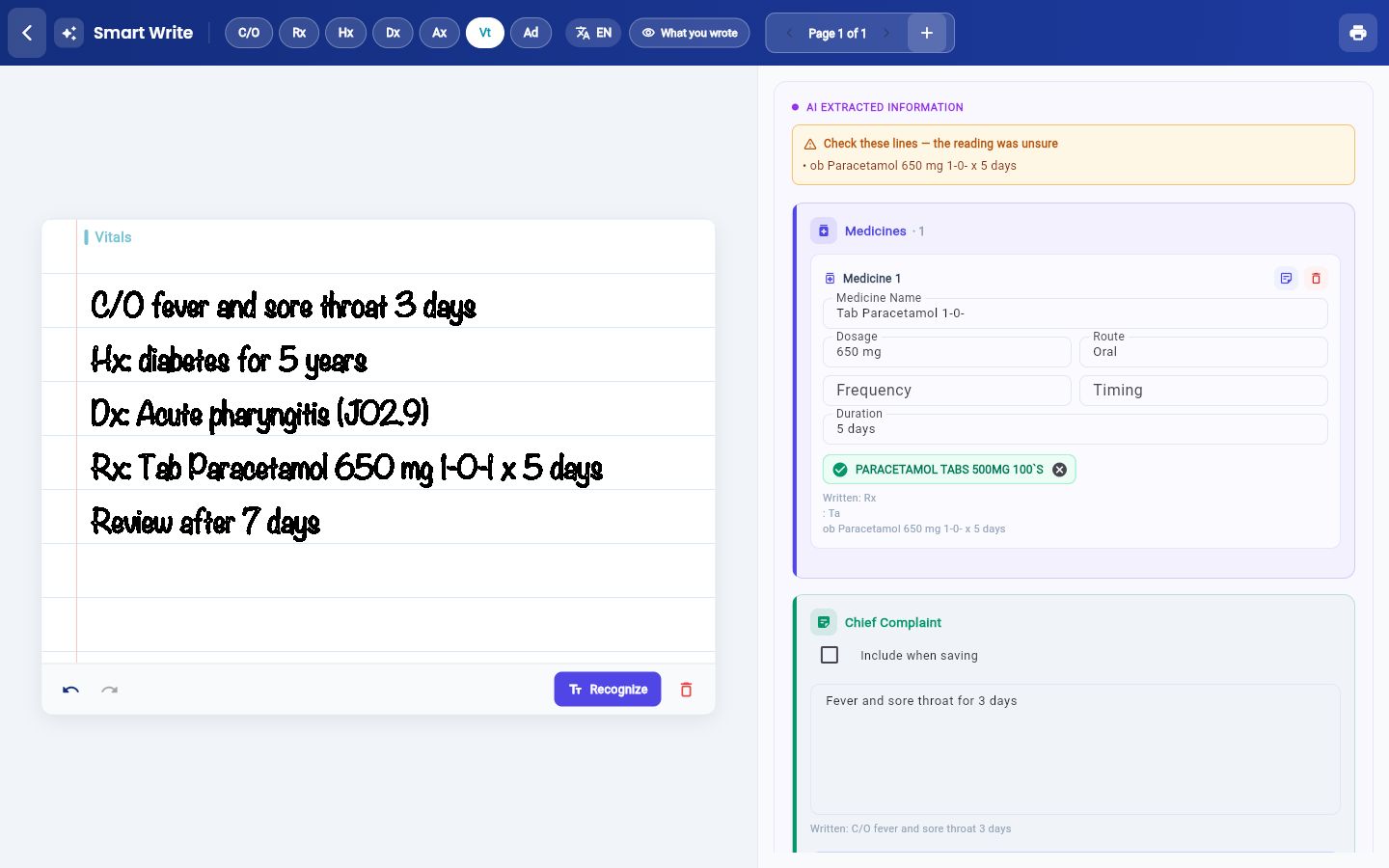
- Correct any field by tapping it and typing.
- On the Chief Complaint and History cards, tick Include when saving for each card you want saved.
- If a line landed in the wrong card, use the button on the card to move it, for example Doesn't look right? Move to Medicines.
Tap What you wrote at the top to see the exact text GenX read from the page, before it was sorted.
Add the medicines
Each medicine you wrote gets its own card with Medicine Name, Dosage, Route, Frequency, Timing and Duration.
- Check the match from your hospital's drug list under the fields. A green tick means the match is confirmed. If it has no tick, tap the right match.
- Fill or correct the dose, frequency and duration. In this example the frequency is 1-0-1 and the duration is 5 days.
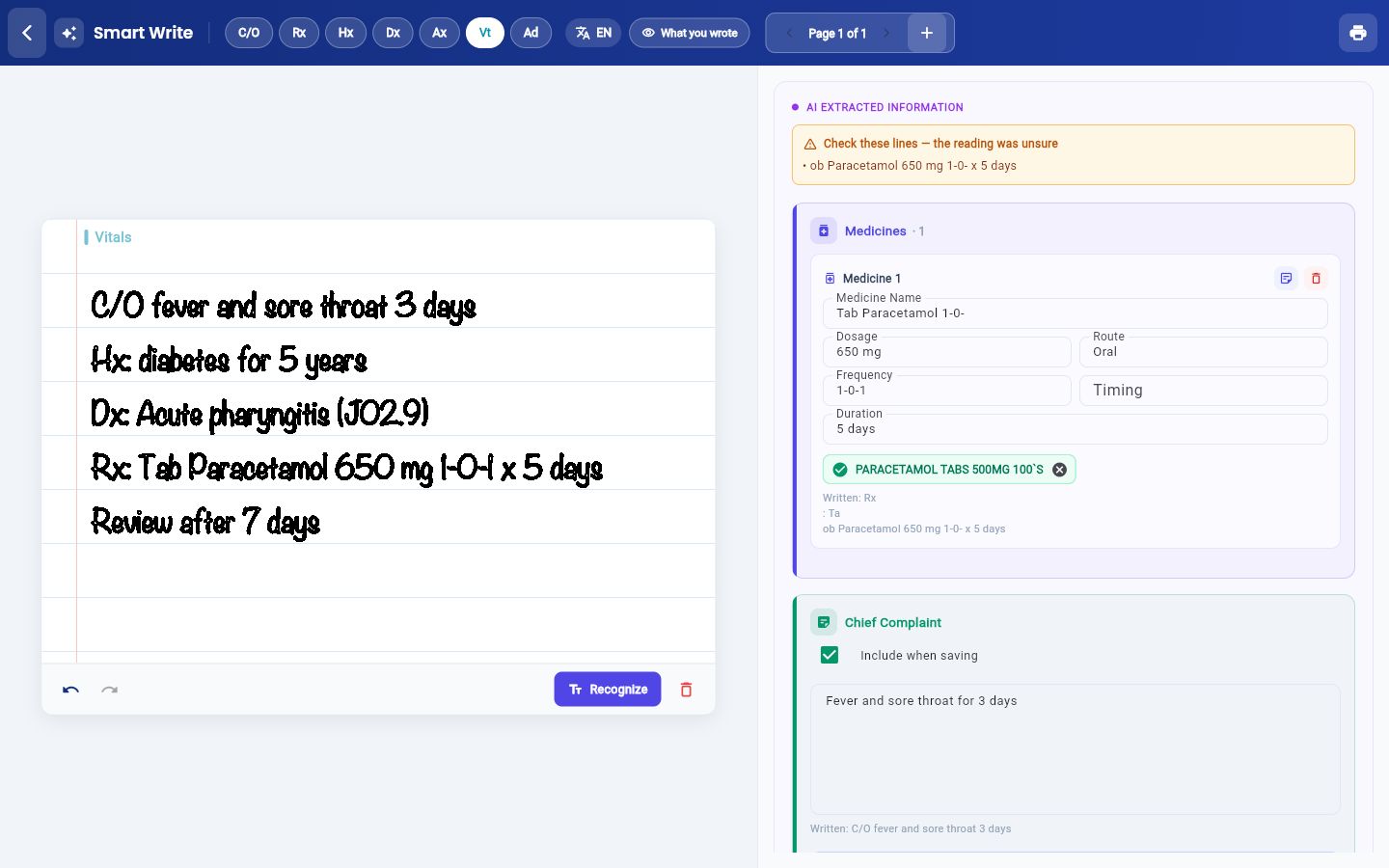
- If the line is not a medicine, tap the note icon on the card to move it to the chief complaint, or the bin icon to remove it.
Pick the diagnosis
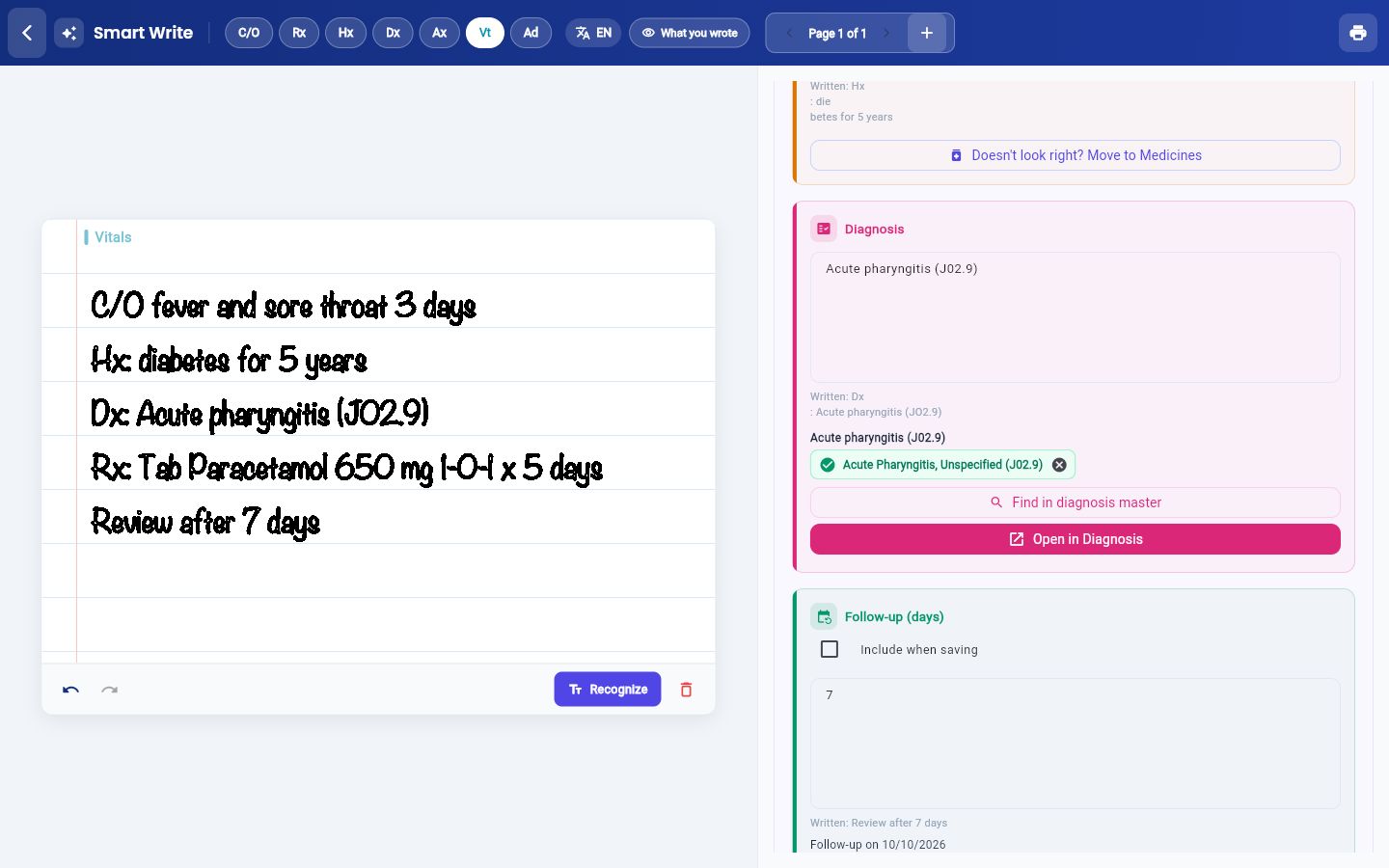
GenX matches each diagnosis line to your hospital's diagnosis master. When you wrote a code, the entry with that exact code is listed first.
- Check the match under the diagnosis line. A green tick means it is confirmed. If it has no tick, tap the right match.
- If the match is not right, tap Find in diagnosis master to see more entries, or Open in Diagnosis to pick it in the full diagnosis section.
Save the note
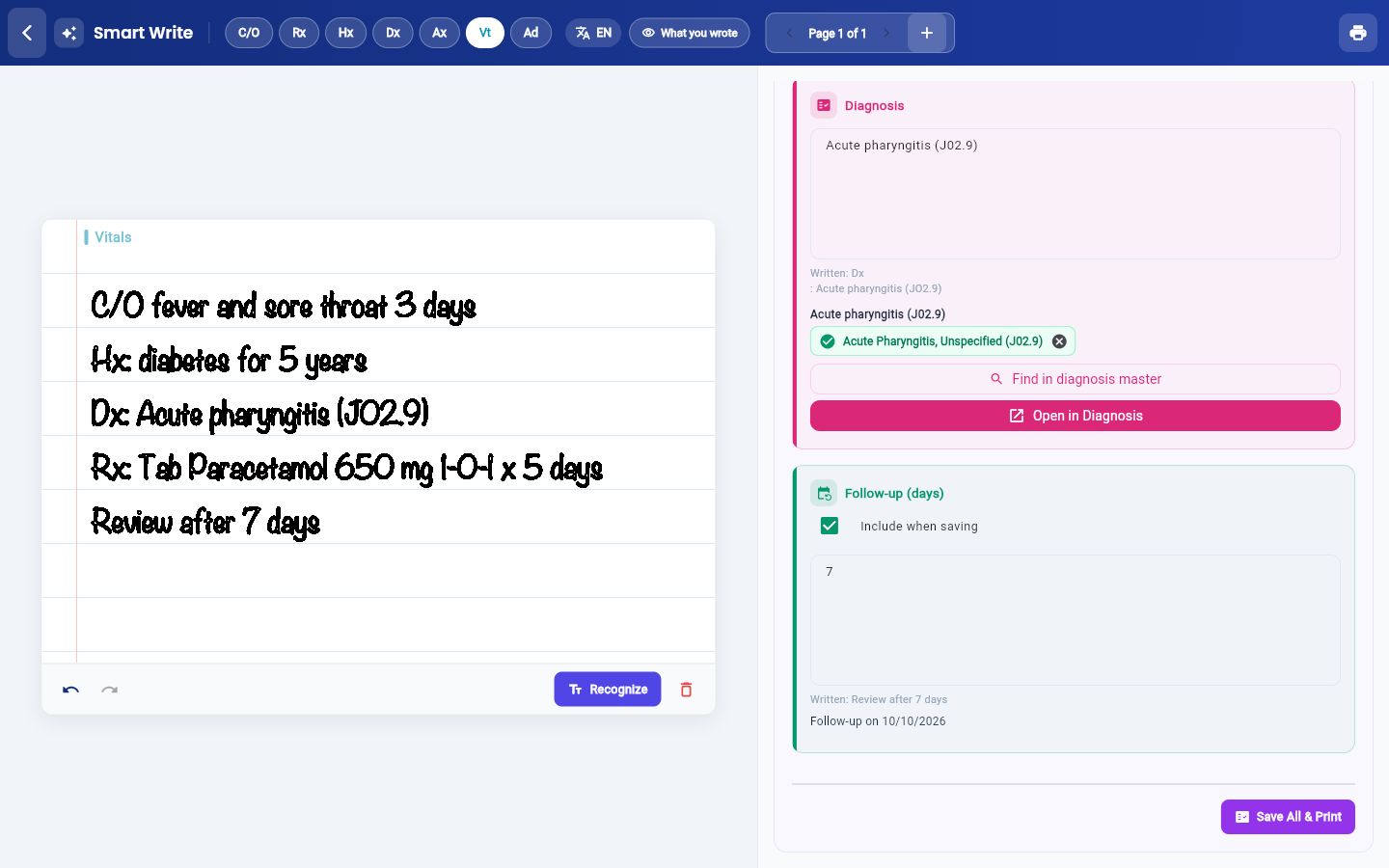
- On the Follow-up (days) card, tick Include when saving. The follow-up date shows under the card.
- Tap Save All & Print at the bottom.
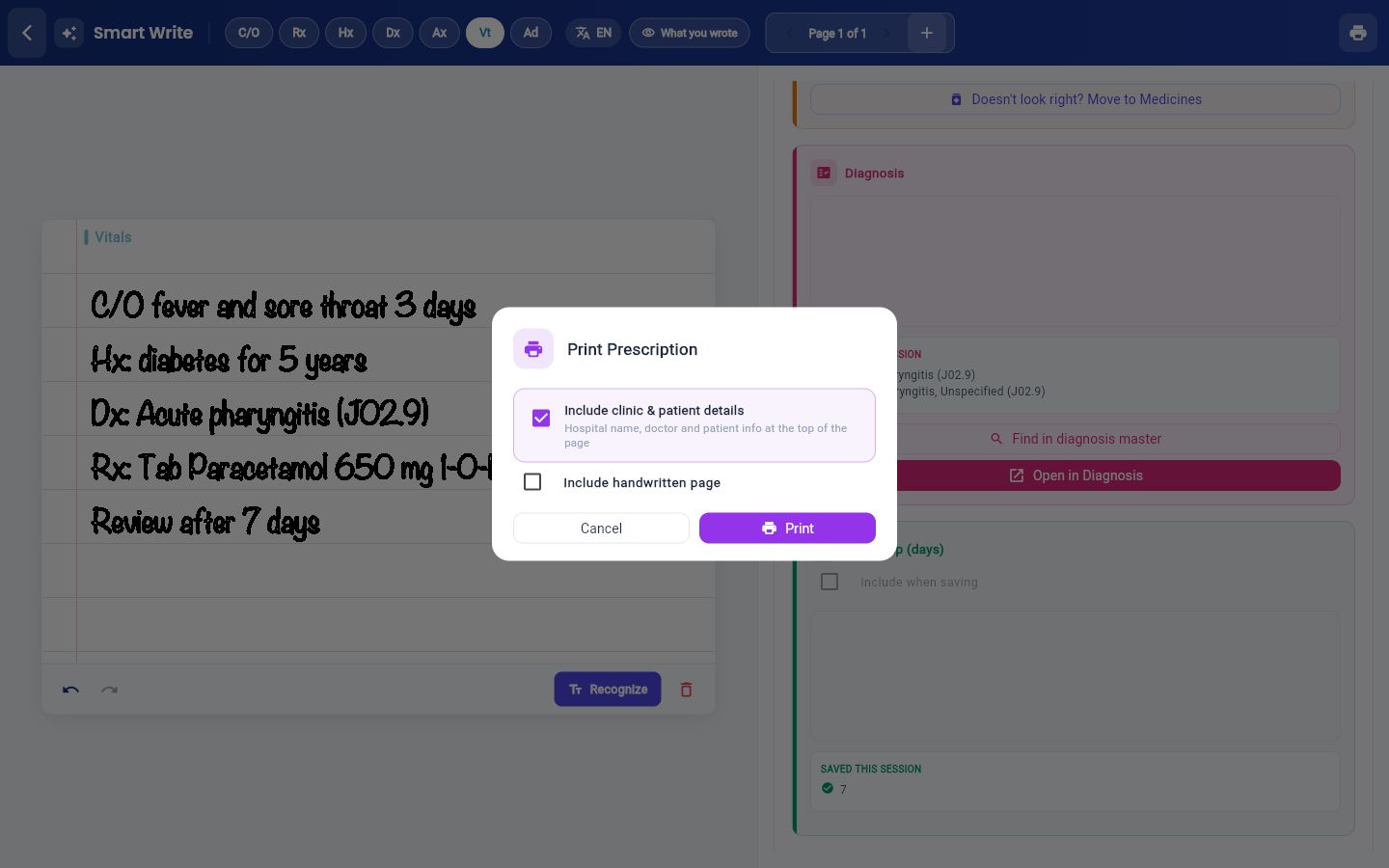
- The Print Prescription window opens. Choose what to print:
- Include clinic & patient details: prints the hospital name, doctor and patient details at the top.
- Include handwritten page: adds your handwritten page to the print.
- Tap Print, or Cancel if you do not need a print now. The note is already saved.
See the note on the web
The saved note opens on the web like any other consultation note.
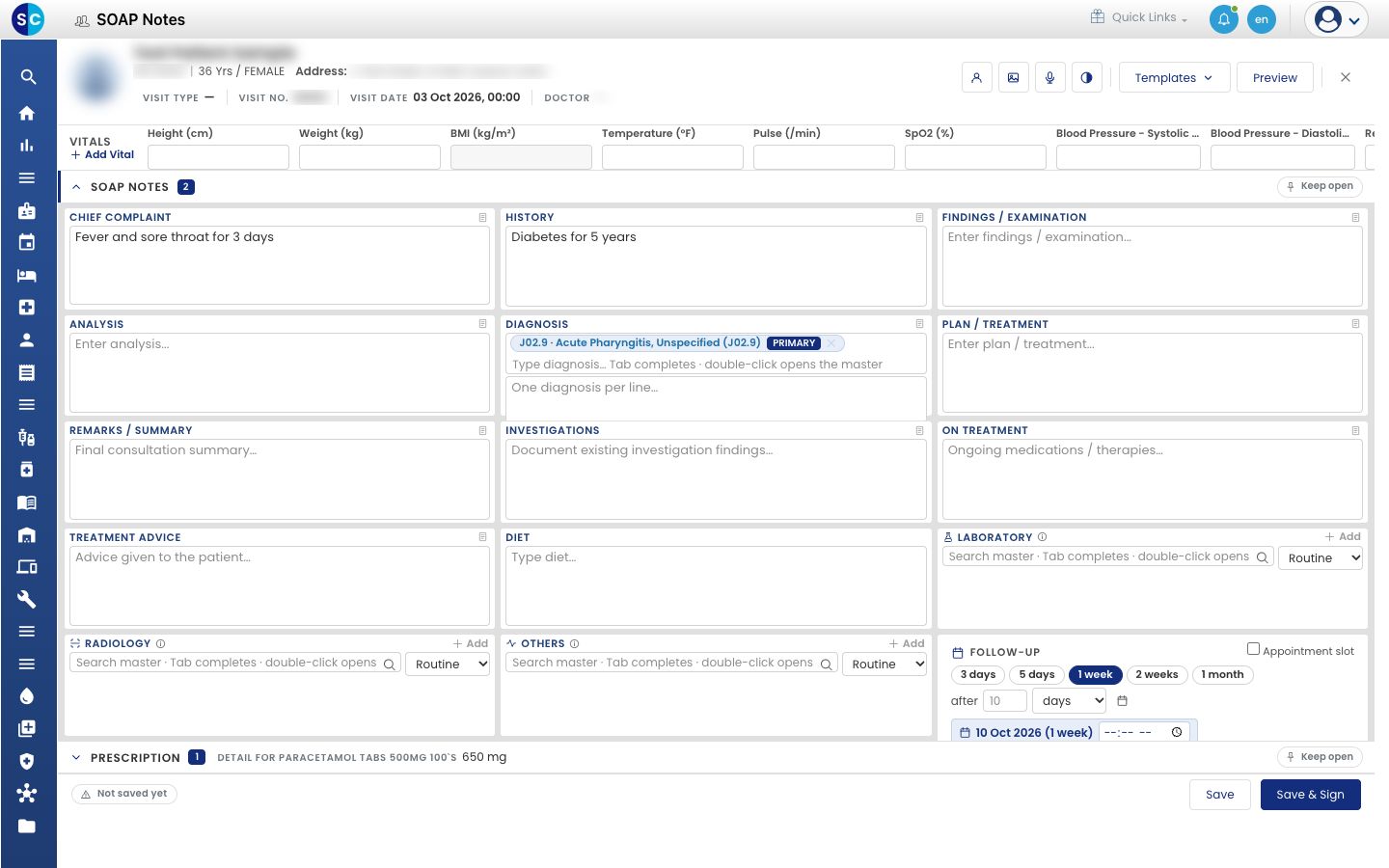
- Open the patient's SOAP note on the web. See Start a consultation from the Doctor Dashboard. The chief complaint, history, diagnosis, prescription and follow-up are filled in.
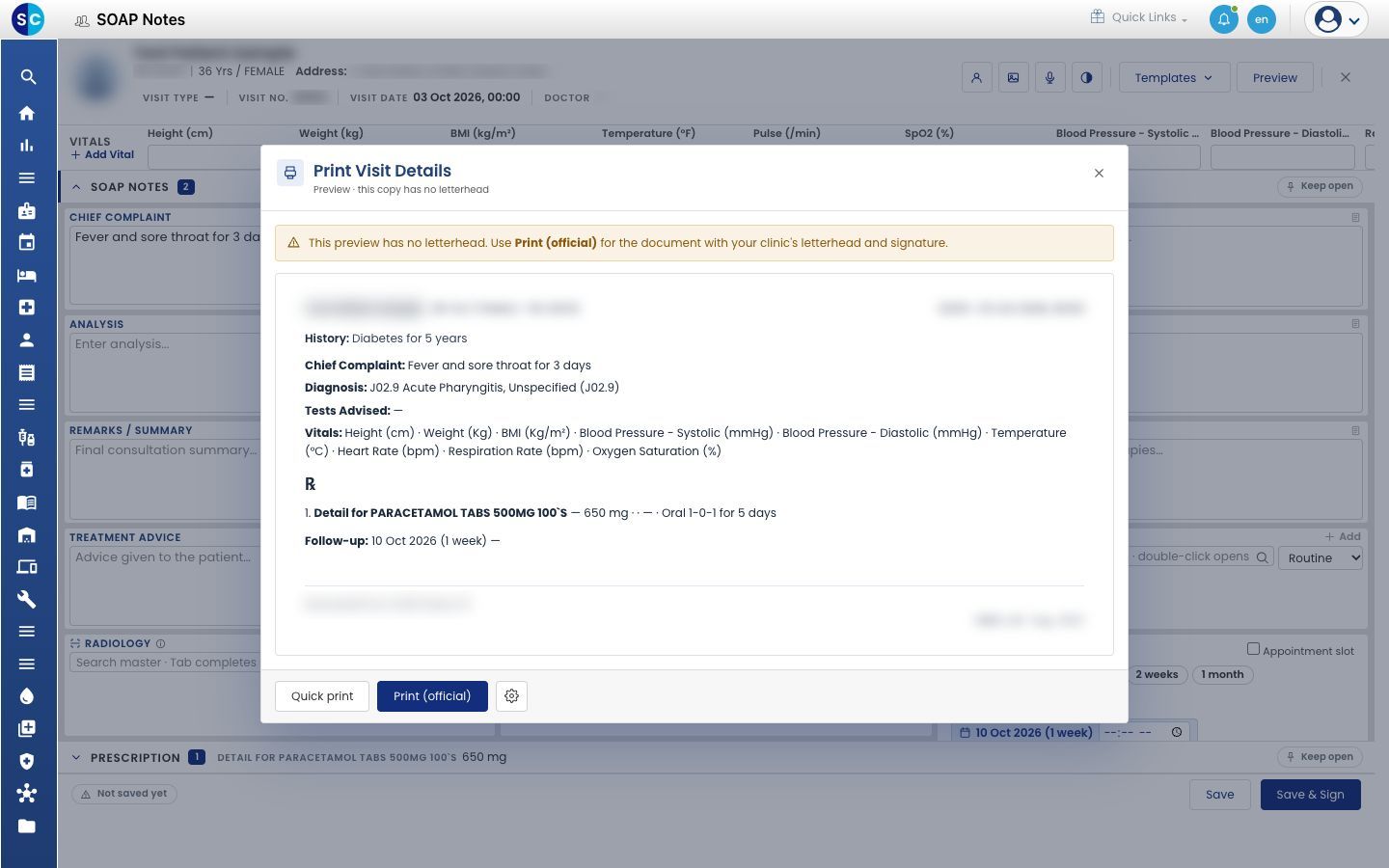
- Click Preview to see the visit print.
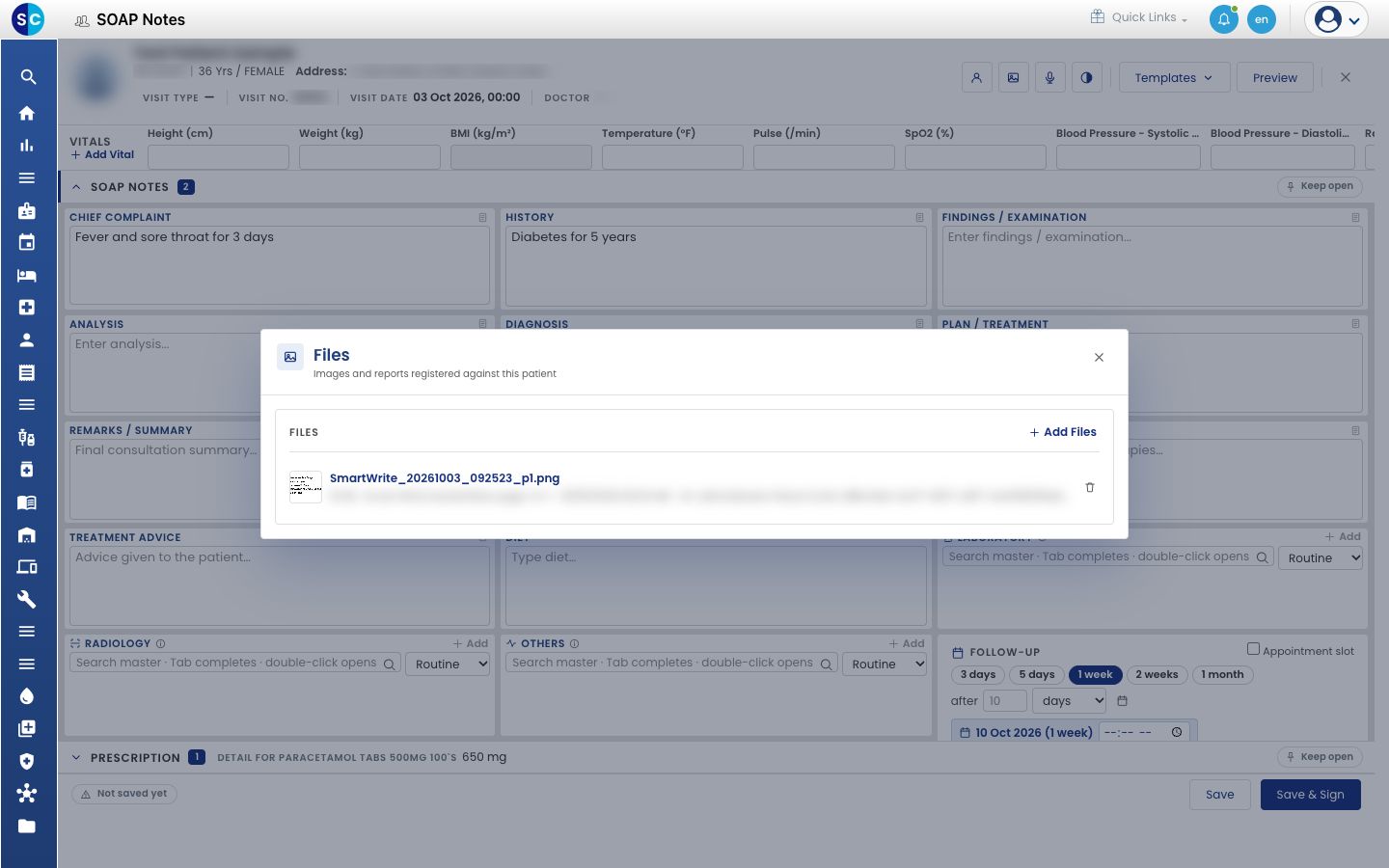
- Click the Files button (the picture icon) at the top. The handwritten page is listed with the date and time it was saved.
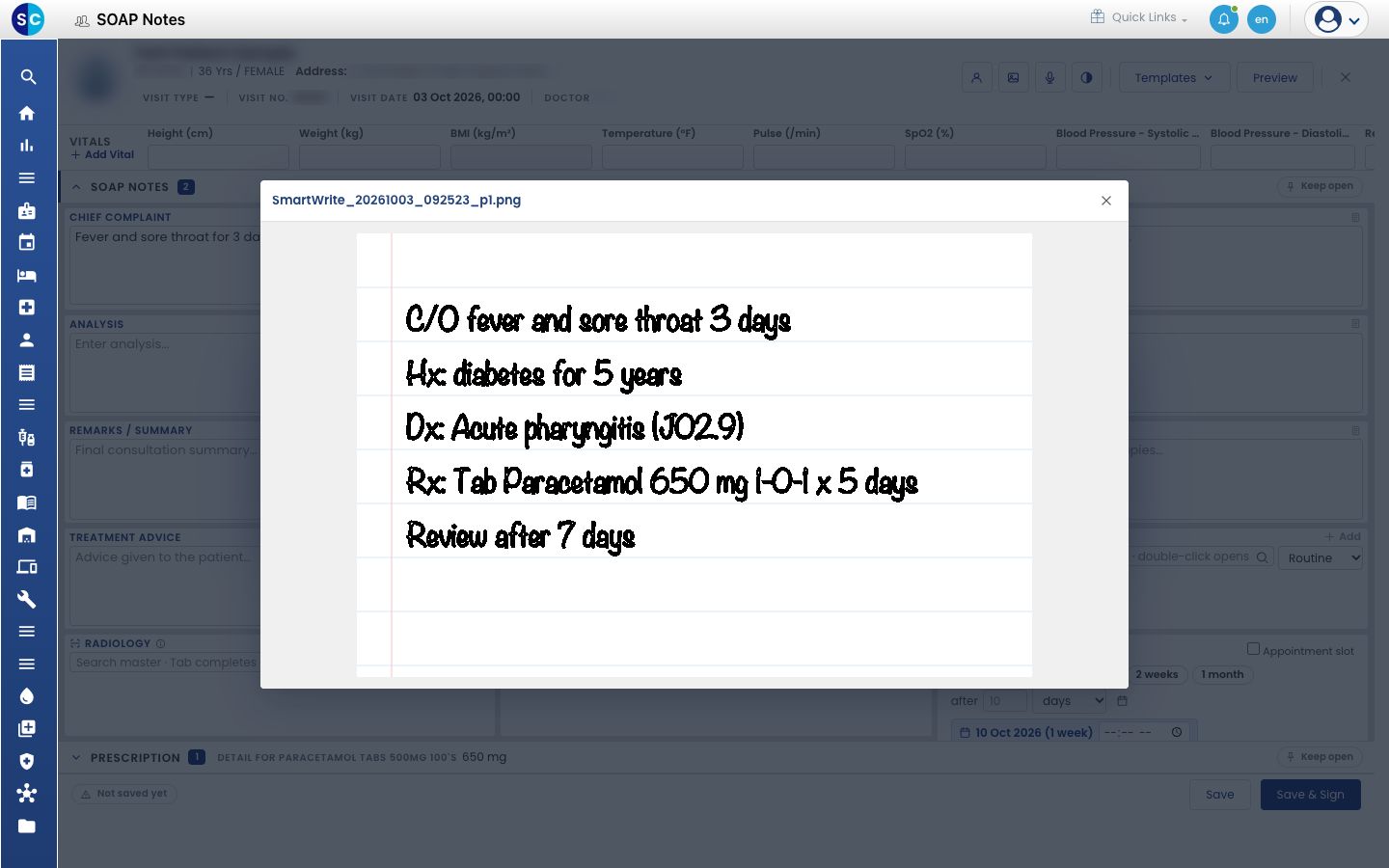
- Click the file name to open the page.
Troubleshooting
| What you see | What it means | What to do |
|---|---|---|
| No Smart Write button on SOAP Notes | Smart Write is switched off for the hospital | Ask your administrator to tick Smart Write in System Settings |
| A line is in the wrong card | GenX sorted the line into another section | Use the move button on the card, or correct the text |
| A medicine or diagnosis has no green tick | It is not confirmed against the hospital's list | Tap the right match, or use Find in diagnosis master |
Related
- Write a prescription: add or change medicines on the web SOAP note.
- Save, sign and print a SOAP note: sign the note to complete the visit.
- Smart Write FAQs: languages, wrong readings and the saved page.