Bill services automatically
Set up your hospital so consultation fees, registration fees, ordered tests and daily in-patient charges load into the bill by themselves.
GenX can put charges on a patient's bill for you, so billing staff do not type each one. Consultation and registration fees load when an outpatient bill opens. Tests and services the doctor orders reach the bill from SOAP Notes and the Nursing Work Bench. Bed rent and daily doctor visits post to an admitted patient's bill when you click Auto Charges.
Each charge loads only after your hospital has set it up once. Use the checklist below, then read the section for the screen you use.
Who does this: hospital administrator for the setup; billing, front desk and nursing staff for daily use
Where: Human Resource, Patient, Appointments, Billing, In-Patient and General Masters
Before you start
Set up each item once. The last column shows what it loads.
| What to set | Where | What it loads |
|---|---|---|
| Consultation Services for each doctor | Human Resource › Employee › edit the doctor › Professional Details | The consultation fee on the appointment and on the OPD bill |
| Charge Registration Fee and the fee service | Patient › Registration Types | The registration fee on the patient's first bill for an appointment |
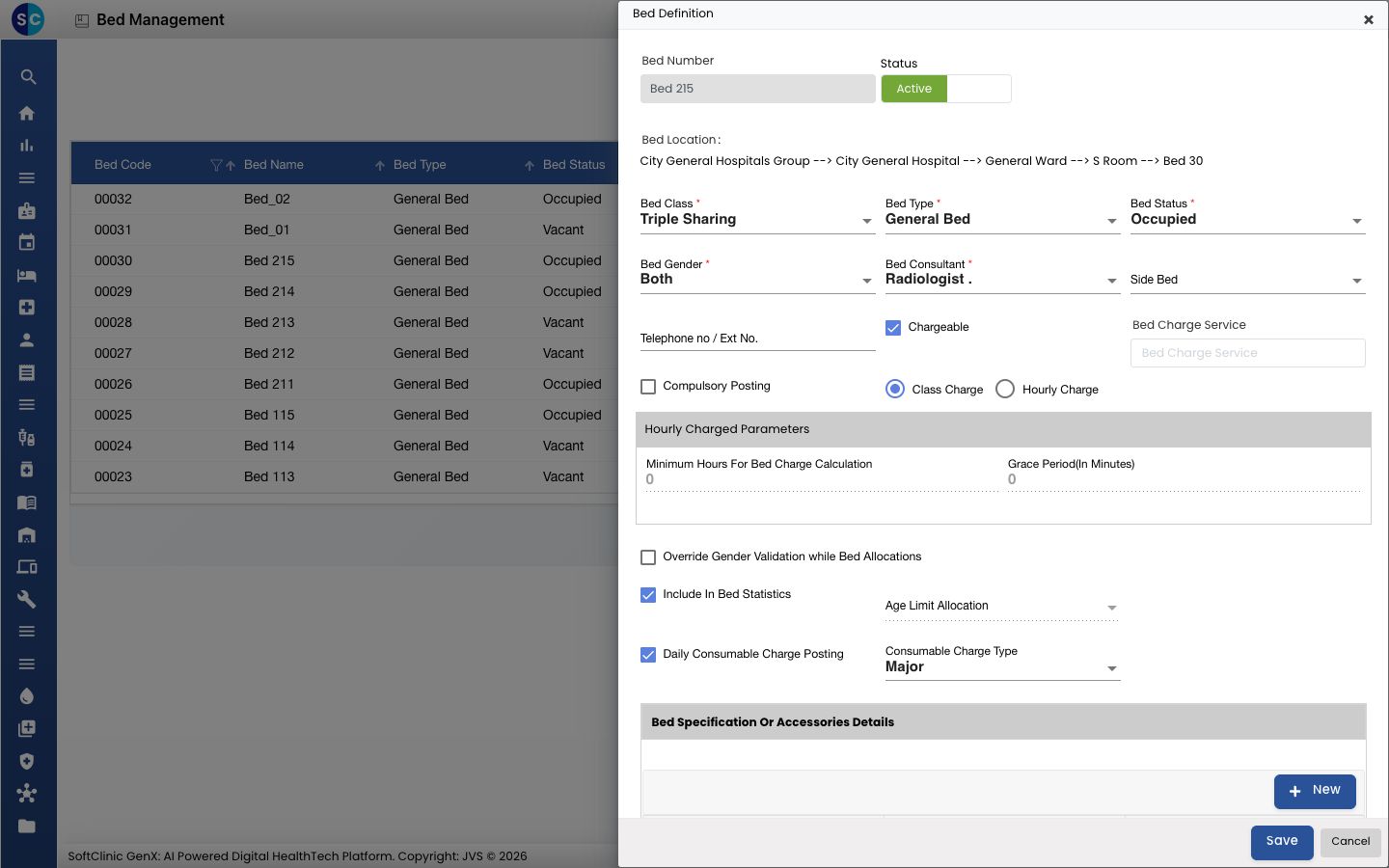
| Bed Charge Service for each bed | In-Patient › Bed Management › edit the bed | Bed rent for each day of the stay |
| Doctor Charge Service for each doctor | Human Resource › Employee › edit the doctor › Professional Details | The admitting doctor's daily visit charge |
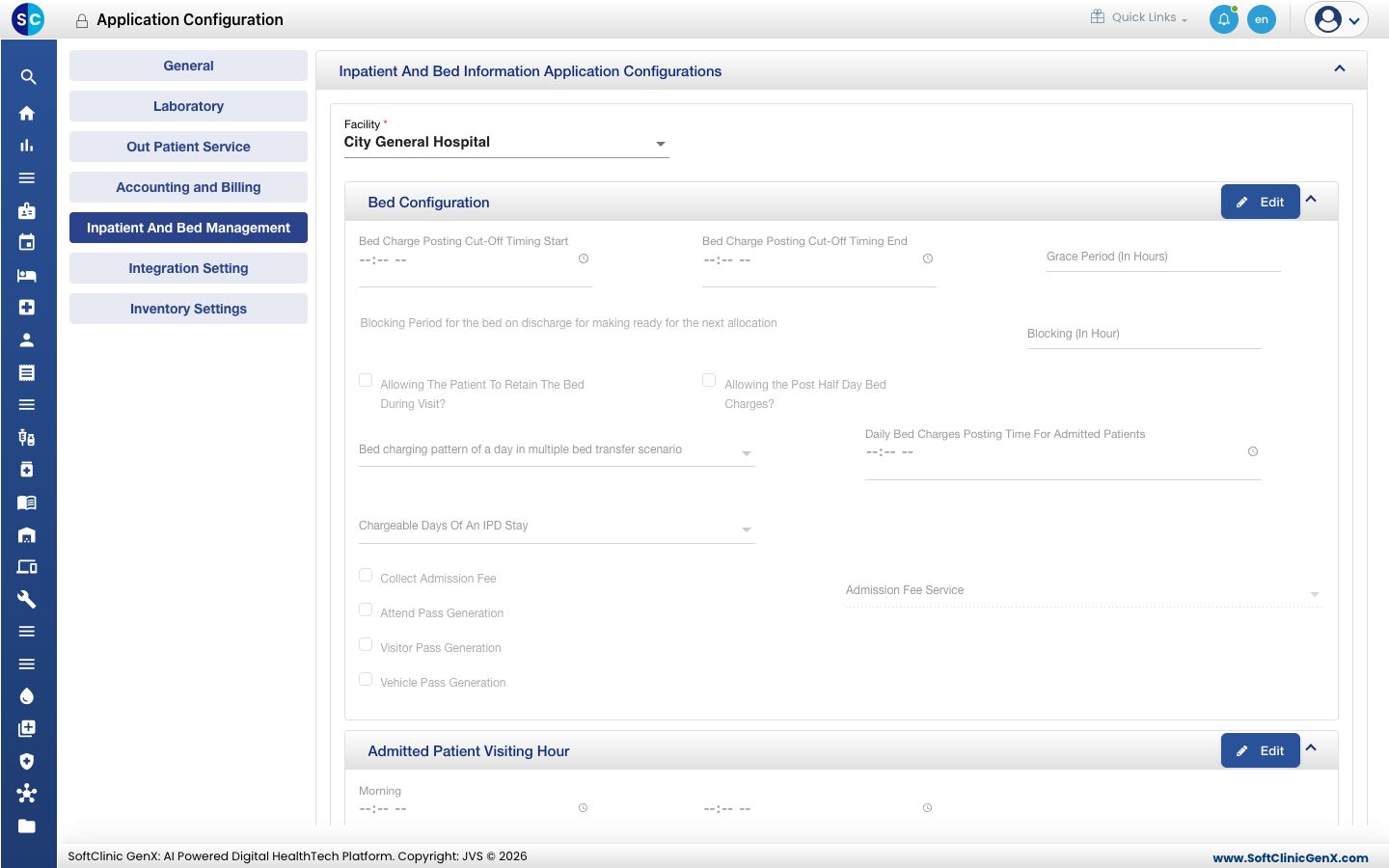
| Chargeable Days Of An IPD Stay and Daily Bed Charges Posting Time For Admitted Patients | General Masters › Application Configuration › Inpatient And Bed Management | Which days are charged |
| Rates for every service | Rate tariffs and the Service master | The price on each line |
Ask SoftClinic support to set up your facility's daily and one-time charges. They load with Auto Charges for admitted patients.
Consultation fee from the appointment
Set the fee once on the doctor, and every appointment with that doctor carries it.
- Go to Human Resource › Employee and open the row menu of the doctor. Choose Edit.
- Open the Professional Details tab. The Consultation Services field shows for doctors only.
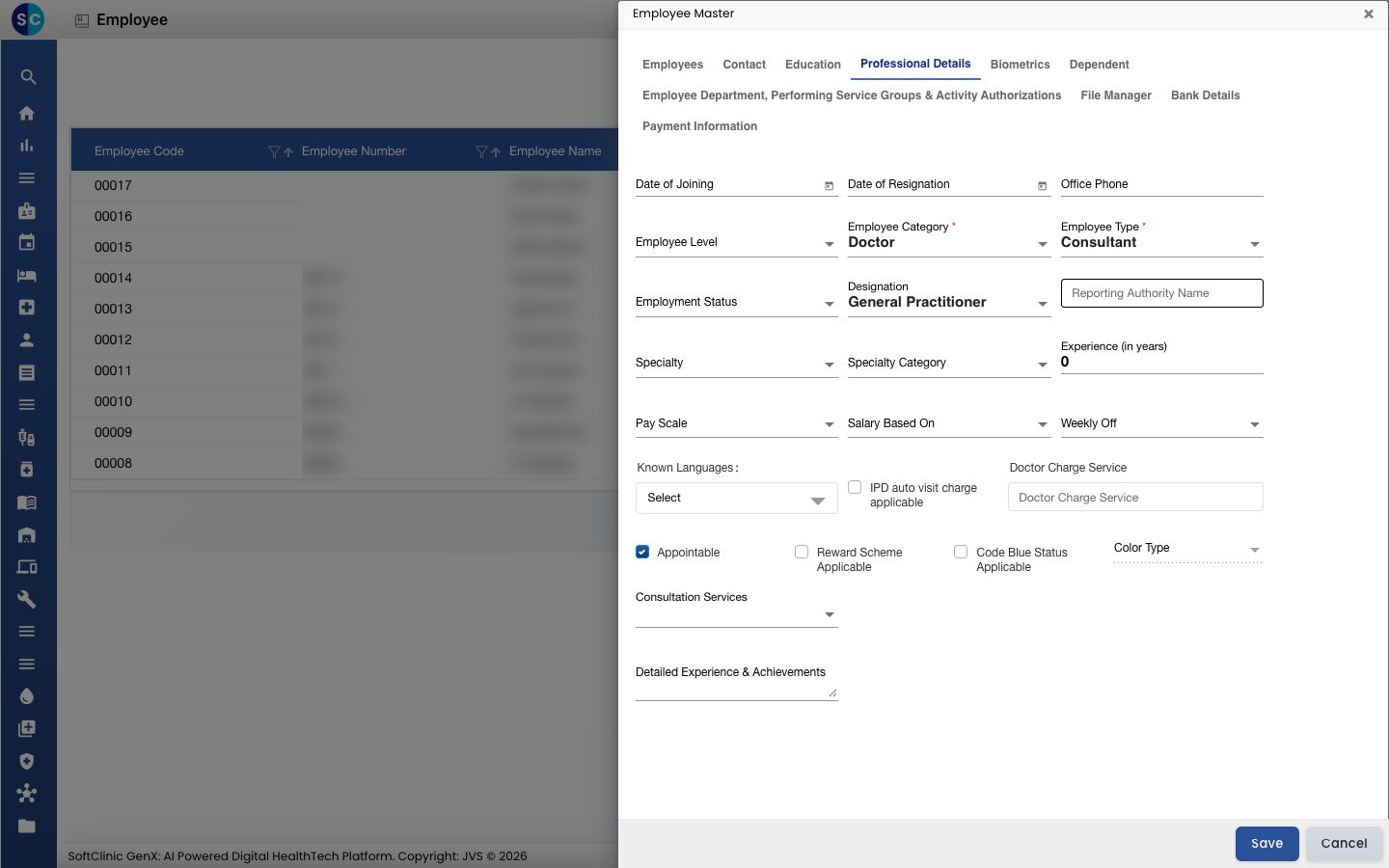
- Pick the consultation service the doctor charges for. Click Save.
- Go to Appointments and click Add. Choose the Department, Clinic/Location and Doctor Name.
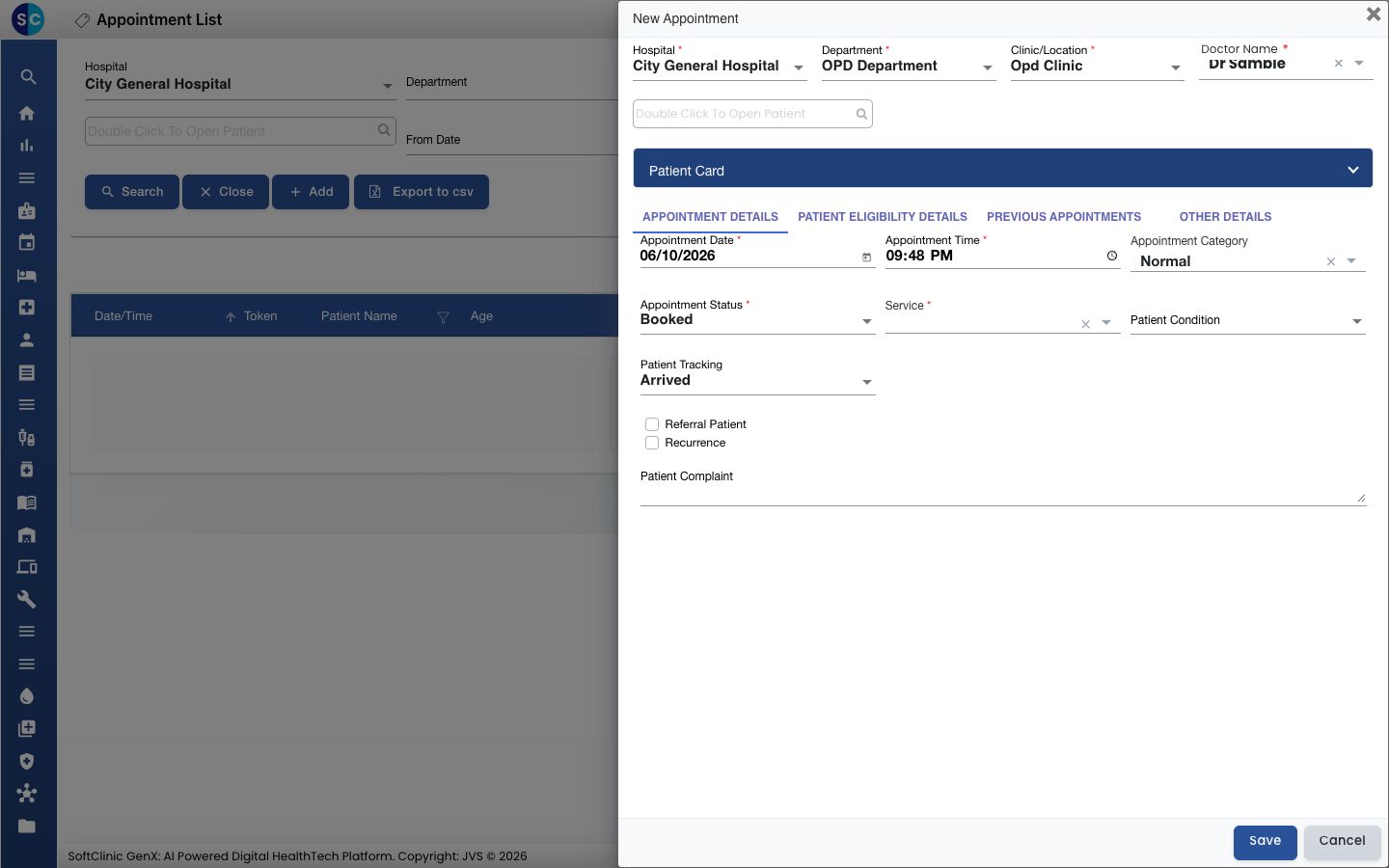
- The Service field fills in with the doctor's consultation service. A service you pick yourself is never replaced.
- When billing opens the OPD bill for that appointment, the consultation line is already on it. It is not added again if it was already billed for that appointment.
If your hospital bills with rate plans or tariffs, set the payer organisation and the OPD Class on the bill first. The consultation line appears after both are set.
Registration fee
Charge a registration fee automatically for the patient types that pay one.
- Go to Patient › Registration Types and edit the type, or click Add.
- On the Registration Type tab, tick Charge Registration Fee.
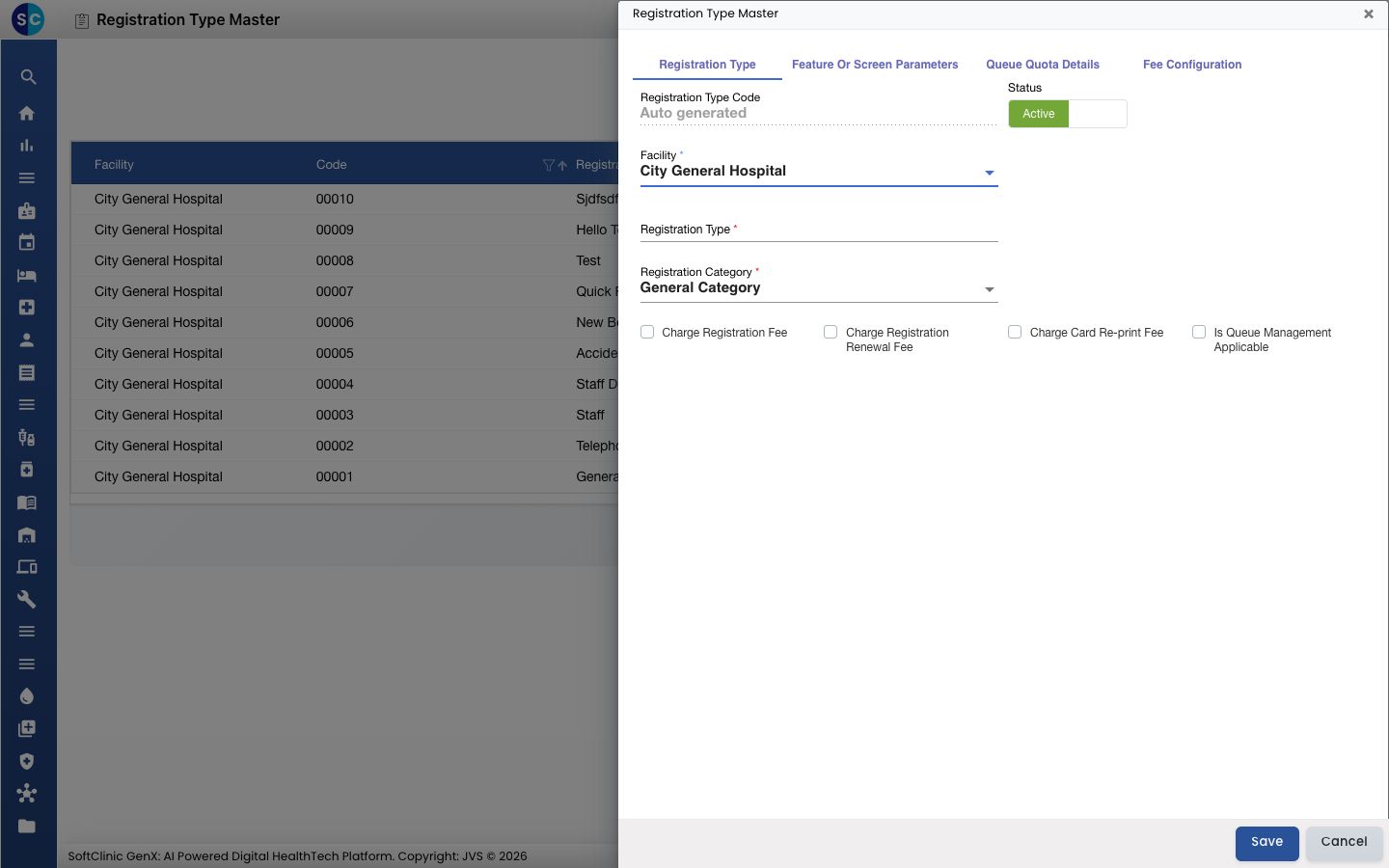
- Open the Fee Configuration tab and choose the registration fee service. Click Save.
- The fee is added to the first bill for the patient's appointment.
Tests and services ordered in SOAP Notes
Orders the doctor saves in SOAP Notes reach the OPD bill without the cashier adding them.
- The doctor orders lab tests, investigations or other services in SOAP Notes and saves.
- Billing opens the OPD bill for the patient. The ordered services are already on it. Walk-in patients are included.
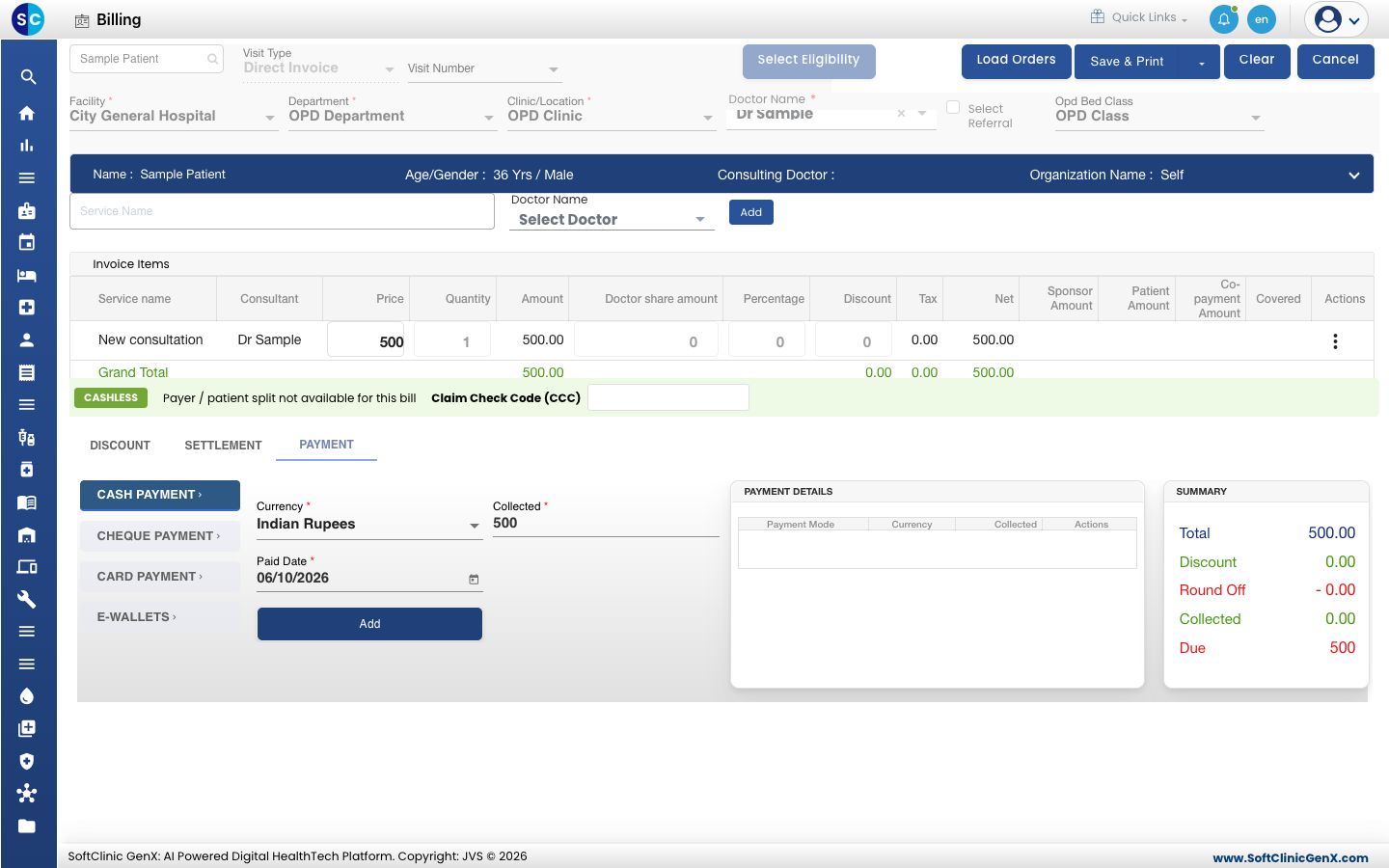
- To pull in orders saved after the bill opened, click Load Orders at the top right of the bill.
- Check the lines and take the payment as usual. Orders that are already billed are not loaded again.
Orders for admitted patients
For an admitted patient, lab and other-service orders saved from SOAP Notes or the Nursing Work Bench go straight onto the running in-patient bill. Billing does not add them. Medicines go through the pharmacy as usual.
- Go to Nursing Work Bench and open the In-Patient list.
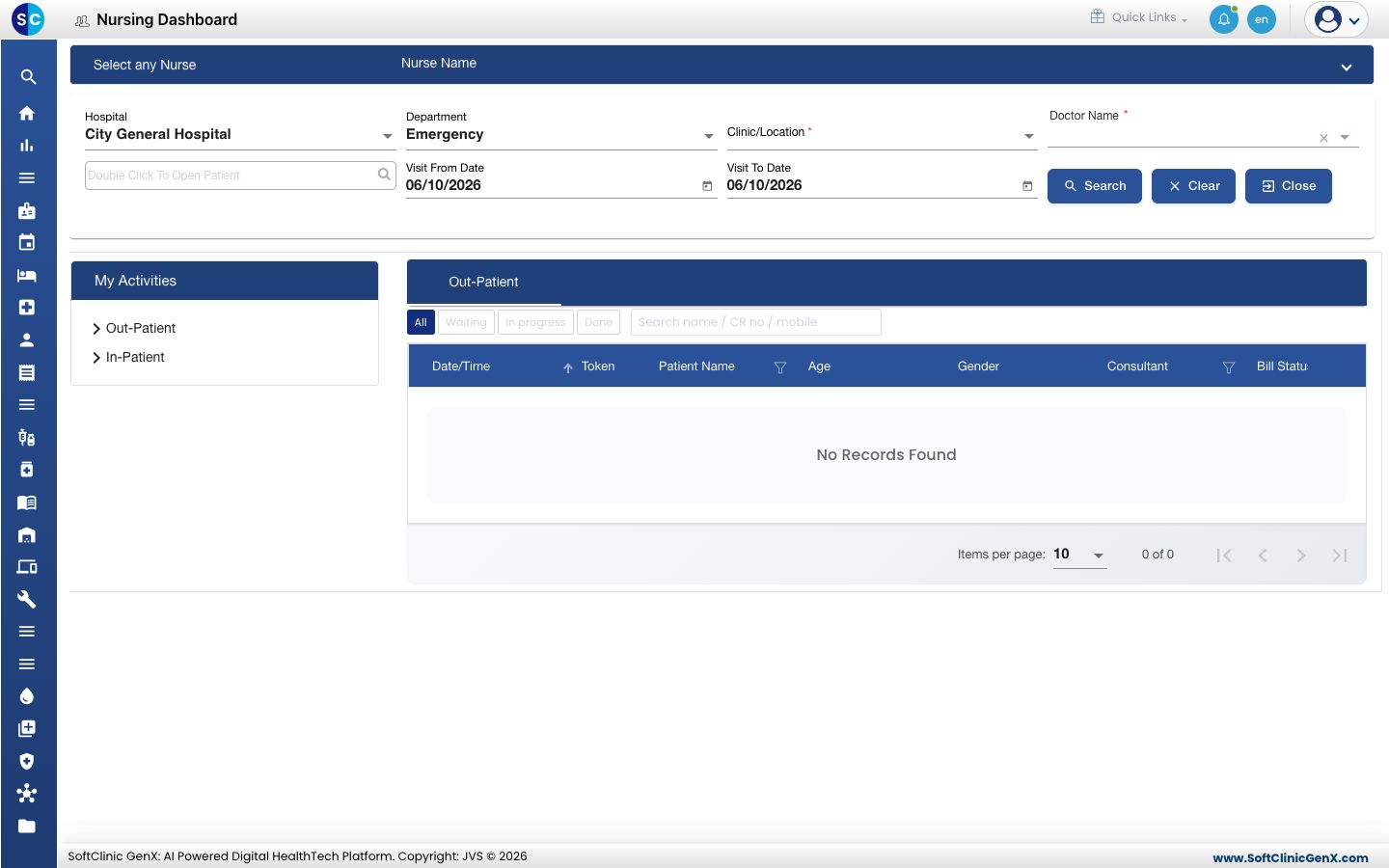
- Open the patient and save the order.
- Open the patient's running bill to see the new line. See View and print an in-patient's running bill.
Daily charges with Auto Charges
Auto Charges posts the daily charges of an admitted patient in one click. It runs only when you click it, never on a timer. Click it every day, and again before you make the final bill.
- Go to In-Patient › Admission List. Open the row menu of the patient.
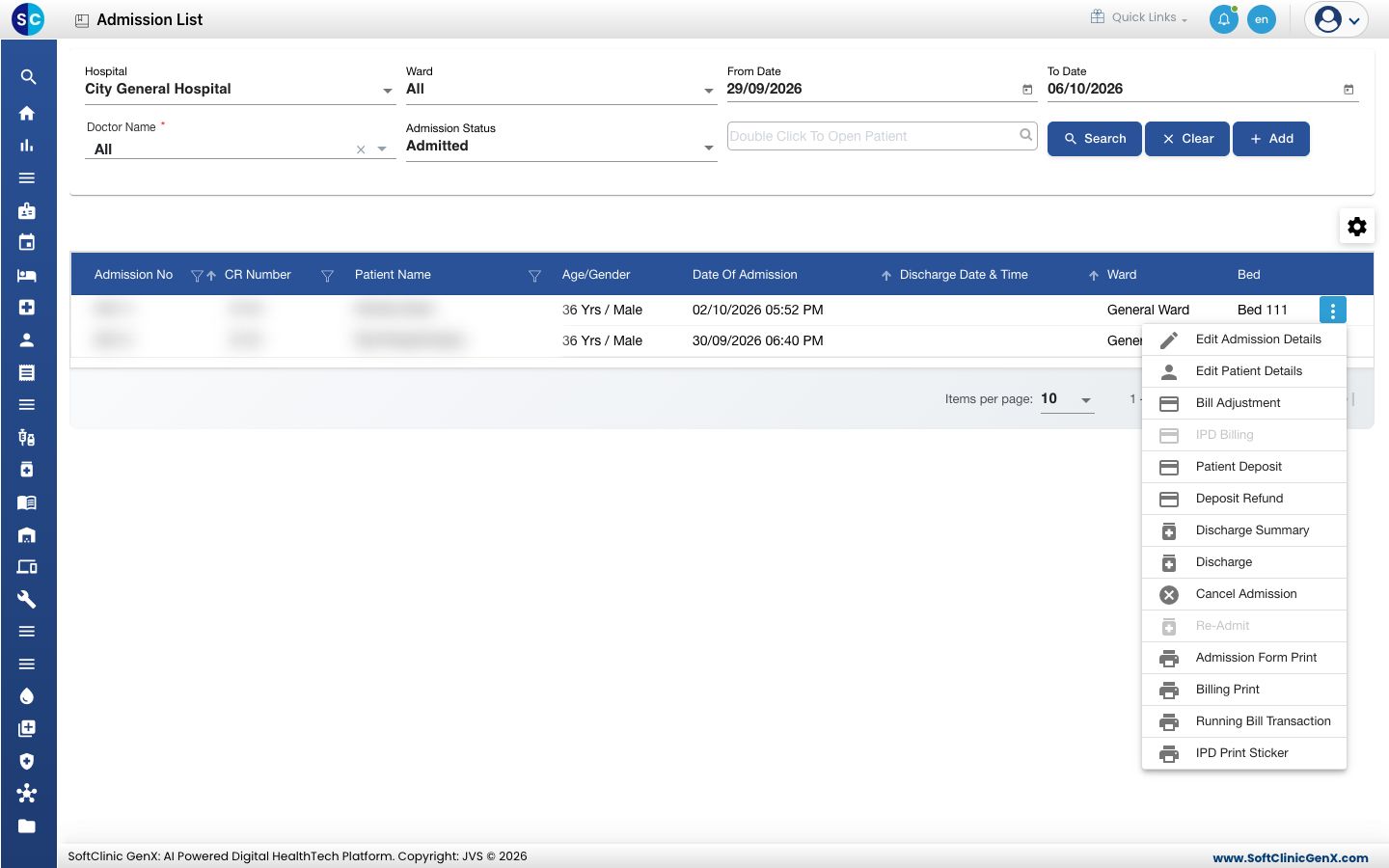
- Choose Bill Adjustment, then click Add Services.
- Click Auto Charges (the lightning icon). Some layouts call it Auto Fetch Charges.
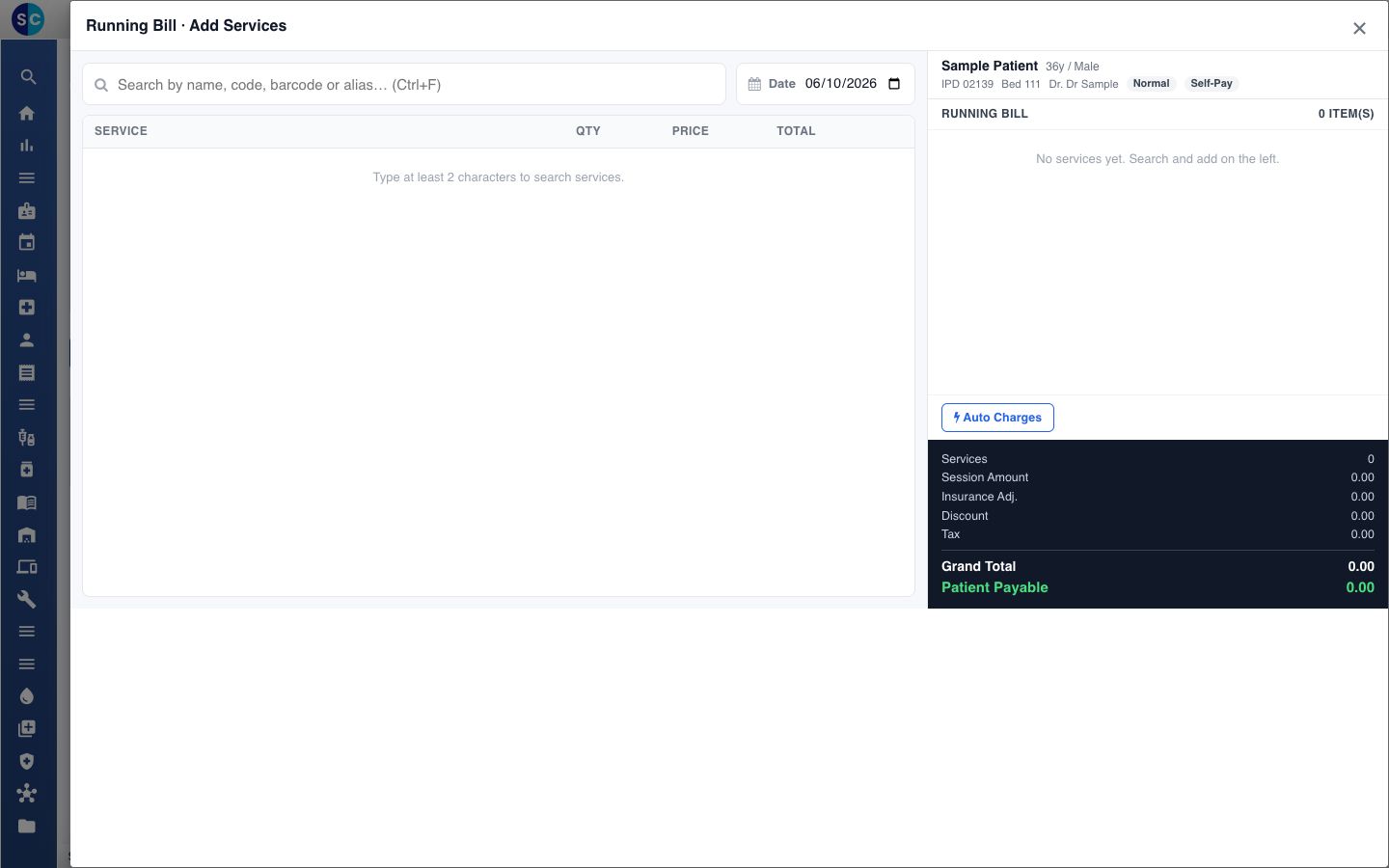
- The lines appear on the running bill. Click Save on the Bill Adjustment screen.
Auto Charges posts:
- Bed rent for each day. The rent comes from the bed's Bed Charge Service, charged at the class of the bed the patient was in that day, so bed transfers are handled. A day whose class has no rate is reported as No rate and skipped.
- The admitting doctor's daily visit, from the doctor's Doctor Charge Service.
- Your facility's daily and one-time charges. One-time charges post on the admission date.
- Per-day packages.
It never posts the same day and service twice, so clicking it again is safe.
Two settings decide which days are charged. Find them in General Masters › Application Configuration › Inpatient And Bed Management: Chargeable Days Of An IPD Stay and Daily Bed Charges Posting Time For Admitted Patients.
Prices come from the rate tariff. If a line shows no price, check the rate tariff and the service.
Troubleshooting
| What you see | What it means | What to do |
|---|---|---|
| The consultation line is missing from the OPD bill | The doctor has no Consultation Services, or the service has no rate for the payer | Add the service on the doctor's Professional Details tab. Add a rate for the payer in the rate tariff. Set the payer organisation and OPD Class on the bill |
| No rate for a day on Auto Charges | The bed's class has no rate for the bed charge service | Add a rate for that bed class, then click Auto Charges again |
| already auto charge services are added ! | Every day and service is already on the bill | Nothing to do. Click Auto Charges again tomorrow |
| You didn't add auto charge services for this facility | Your facility's daily and one-time charges are not set up | Contact SoftClinic support to set them up |
Related
- View and print an in-patient's running bill: check the charges as they post.
- Create an OPD bill: the bill the automatic lines load onto.
- Rate tariffs: set the price of each service for each payer.
- Service: add the services these charges use.
- Billing FAQs: common billing questions.